> ## Documentation Index
> Fetch the complete documentation index at: https://domoinc-bradley-turek-pfilter-operators-reference.mintlify.site/llms.txt
> Use this file to discover all available pages before exploring further.
# JupyterでAIプロンプトを使用する
## はじめに
Jupyterワークスペースを使用すると、メモ内にAIプロンプトを記述できます。Jupyterは、Jupyterから移動せずにDomo. AIプレイグラウンドの場合と同じプロンプトを使用します。
Jupyter AIの詳細については [こちら](/ja/s/article/000005291) 、AIプレイグラウンドの詳細については [こちら](/ja/s/article/000005236) を参照してください。
## 必要な許可
Jupyterにアクセスするには、以下のいずれかの許可が有効になっている権限が必要です。
* **Jupyterワークスペースを作成 —** ユーザーは、自分がアクセス権を持つJupyterワークスペースを作成、編集、削除できます。
* **Jupyterワークスペースを管理** (Jupyter管理者) **—** ユーザーは、インスタンス内のすべてのJupyterワークスペースを表示、編集、削除できます。ほかのユーザーとワークスペースを共有するには、この許可が必要です。
## Jupyterワークスペースにアクセスする
ナビゲーションヘッダーで **[データ]** を選択してData Centerを開きます。
左側のナビゲーションで、  **[More]** (水平の三点リーダー)> **[Jupyterワークスペース]** を選択します。
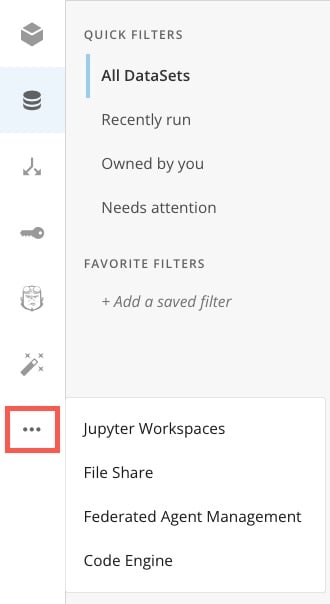 ワークスペースの作成の詳細については、 [こちら](/ja/s/article/36004740075) を参照してください。
## テキスト生成プロンプトを使用する
generate\_textプロンプトは、質問に対する回答を提供します。この例では、AIサービスに提供されるプロンプトはprompt\_templateにあります。ここには\${words}の制限があり、この値はprompt\_parametersに含まれています。
出力プロンプトは下部に指定されます。
ワークスペースの作成の詳細については、 [こちら](/ja/s/article/36004740075) を参照してください。
## テキスト生成プロンプトを使用する
generate\_textプロンプトは、質問に対する回答を提供します。この例では、AIサービスに提供されるプロンプトはprompt\_templateにあります。ここには\${words}の制限があり、この値はprompt\_parametersに含まれています。
出力プロンプトは下部に指定されます。
 `prompt_template` が指定されている場合、プロンプトテンプレートのテキスト内にプレースホルダー `${input}` を含めない限り、 `input_str` は無視されます。 `${input}` プレースホルダーを含めると、 `input_str` がそのプレースホルダーに自動的に挿入されます。
generate\_text関数では、以下のパラメータを使用できます。 `input_str` を除くすべてのパラメータはオプションです。
```
def generate_text(input_str:str,
prompt_template: Optional[PromptTemplate] = None,
parameters: Optional[dict[str, str]] = None,
model: Optional[str] = None,
model_configuration: Optional[dict[str, object]] = None,
system: Optional[str] = None):
"""
文字列入力からテキストを生成
パラメータ:
input_str (str): 入力文字列
prompt_template (PromptTemplate): プロンプトテンプレート
parameters (dict[str, str]): パラメータ
model (str): モデル名
model_configuration (dict[str, object]): モデル設定
system (str): モデルへのプロンプトに含まれるデフォルトのシステム命令のオプションオーバーライド。
戻り値:
response: 生成されたテキスト
"""
text_generation_request = TextGenerationRequest(input_str, prompt_template, parameters, model,
model_configuration, system)
text_response = _jupyterhub.generate_text(text_generation_request.to_json())
text_ai_response = TextAIResponse(text_response['prompt'], text_response['choices'])
return text_ai_response
```
## Text-to-SQLプロンプトを使用する
text\_to\_sqlプロンプトは質問にもとづいてSQLクエリを提供します。この例では、AIサービスに提供されるプロンプトはprompt\_templateに、指定した列はprompt\_parametersにあります。
関数SQLクエリは下部の出力で指定されます。
`prompt_template` が指定されている場合、プロンプトテンプレートのテキスト内にプレースホルダー `${input}` を含めない限り、 `input_str` は無視されます。 `${input}` プレースホルダーを含めると、 `input_str` がそのプレースホルダーに自動的に挿入されます。
generate\_text関数では、以下のパラメータを使用できます。 `input_str` を除くすべてのパラメータはオプションです。
```
def generate_text(input_str:str,
prompt_template: Optional[PromptTemplate] = None,
parameters: Optional[dict[str, str]] = None,
model: Optional[str] = None,
model_configuration: Optional[dict[str, object]] = None,
system: Optional[str] = None):
"""
文字列入力からテキストを生成
パラメータ:
input_str (str): 入力文字列
prompt_template (PromptTemplate): プロンプトテンプレート
parameters (dict[str, str]): パラメータ
model (str): モデル名
model_configuration (dict[str, object]): モデル設定
system (str): モデルへのプロンプトに含まれるデフォルトのシステム命令のオプションオーバーライド。
戻り値:
response: 生成されたテキスト
"""
text_generation_request = TextGenerationRequest(input_str, prompt_template, parameters, model,
model_configuration, system)
text_response = _jupyterhub.generate_text(text_generation_request.to_json())
text_ai_response = TextAIResponse(text_response['prompt'], text_response['choices'])
return text_ai_response
```
## Text-to-SQLプロンプトを使用する
text\_to\_sqlプロンプトは質問にもとづいてSQLクエリを提供します。この例では、AIサービスに提供されるプロンプトはprompt\_templateに、指定した列はprompt\_parametersにあります。
関数SQLクエリは下部の出力で指定されます。
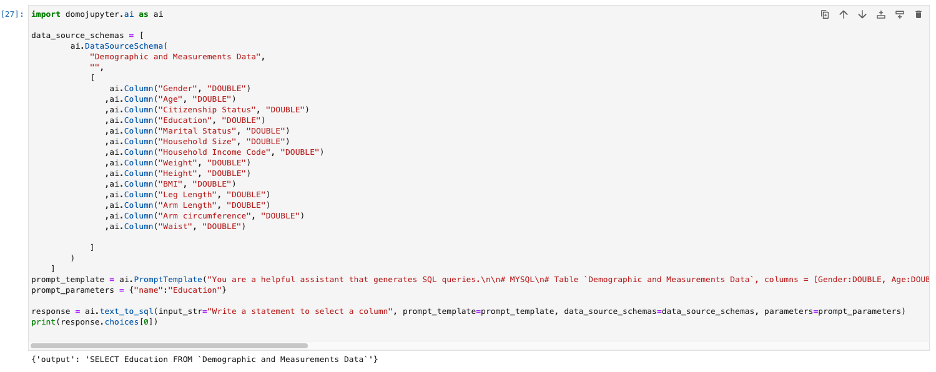 標準のtext\_to\_sqlテンプレートを変更するには、新しいDataSourceSchemaと、AIプロンプトの記述内容を指定するinput\_strを指定します。
ワークスペースに接続されている既存のDataSetにworkspace\_data\_source\_aliasを指定することもできます。workspace\_data\_source\_aliasを指定すると、ワークスペースはSQLクエリの列名を生成するときにスキーマを使用できます。
text\_to\_sql関数では、以下のパラメータを使用できます。 `input_str` を除くすべてのパラメータはオプションです。
```
def text_to_sql(input_str: str,
prompt_template: Optional[PromptTemplate] = None,
data_source_schemas: Optional[list[DataSourceSchema]] = None,
parameters: Optional[dict[str, str]] = None,
model: Optional[str] = None,
model_configuration: Optional[dict[str, object]] = None,
workspace_data_source_alias: Optional[str] = None,
dataframe: Optional[pd.DataFrame] = None,
system: Optional[str] = None
):
"""
テキストをSQLに変換
パラメータ:
input_str (str): 入力文字列
data_source_schemas (list[DataSourceSchema]): データソーススキーマのリスト
prompt_template (PromptTemplate): プロンプトテンプレート
parameters (dict[str, str]): パラメータ
model (str): モデル名
model_configuration (dict[str, object]): モデル設定
workspace_data_source_alias (str): ワークスペースに関連付けられたデータソーススキーマのエイリアス
dataframe (pd.DataFrame): Pandasデータフレーム
system (str): モデルへのプロンプトに含まれるデフォルトのシステム命令のオプションオーバーライド。
戻り値:
text_ai_response: TextAiResponse
""" if workspace_data_source_alias is not None:
data_source_schemas = [
DataSourceSchema.from_optional_list(domojupyter.io.get_schema_from_datasource(workspace_data_source_alias).get('schema'),
workspace_data_source_alias)]
elif dataframe is not None:
schema = domojupyter.io.get_schema_from_dataframe(dataframe)
data_source_schemas = [
DataSourceSchema.from_optional_list(schema,
dataframe.name)]
text_to_sql_request = TextToSQLRequest(input_str, data_source_schemas, prompt_template, parameters, model,
model_configuration, system)
sql_response = _jupyterhub.text_to_sql(text_to_sql_request.to_json())
text_ai_response = TextAIResponse(sql_response['prompt'], sql_response['choices'])
return text_ai_response
```
## テキストからBeast Modeプロンプトを使用する
テキストからBeast Modeサービスは、質問にもとづいてBeast Mode関数を提供します。この例では、AIに提供されるプロンプトで、すべての値の列(data\_source\_schemas)をまとめて追加するように要求されています。
Beast Mode関数は下部の出力で指定されます。
標準のtext\_to\_sqlテンプレートを変更するには、新しいDataSourceSchemaと、AIプロンプトの記述内容を指定するinput\_strを指定します。
ワークスペースに接続されている既存のDataSetにworkspace\_data\_source\_aliasを指定することもできます。workspace\_data\_source\_aliasを指定すると、ワークスペースはSQLクエリの列名を生成するときにスキーマを使用できます。
text\_to\_sql関数では、以下のパラメータを使用できます。 `input_str` を除くすべてのパラメータはオプションです。
```
def text_to_sql(input_str: str,
prompt_template: Optional[PromptTemplate] = None,
data_source_schemas: Optional[list[DataSourceSchema]] = None,
parameters: Optional[dict[str, str]] = None,
model: Optional[str] = None,
model_configuration: Optional[dict[str, object]] = None,
workspace_data_source_alias: Optional[str] = None,
dataframe: Optional[pd.DataFrame] = None,
system: Optional[str] = None
):
"""
テキストをSQLに変換
パラメータ:
input_str (str): 入力文字列
data_source_schemas (list[DataSourceSchema]): データソーススキーマのリスト
prompt_template (PromptTemplate): プロンプトテンプレート
parameters (dict[str, str]): パラメータ
model (str): モデル名
model_configuration (dict[str, object]): モデル設定
workspace_data_source_alias (str): ワークスペースに関連付けられたデータソーススキーマのエイリアス
dataframe (pd.DataFrame): Pandasデータフレーム
system (str): モデルへのプロンプトに含まれるデフォルトのシステム命令のオプションオーバーライド。
戻り値:
text_ai_response: TextAiResponse
""" if workspace_data_source_alias is not None:
data_source_schemas = [
DataSourceSchema.from_optional_list(domojupyter.io.get_schema_from_datasource(workspace_data_source_alias).get('schema'),
workspace_data_source_alias)]
elif dataframe is not None:
schema = domojupyter.io.get_schema_from_dataframe(dataframe)
data_source_schemas = [
DataSourceSchema.from_optional_list(schema,
dataframe.name)]
text_to_sql_request = TextToSQLRequest(input_str, data_source_schemas, prompt_template, parameters, model,
model_configuration, system)
sql_response = _jupyterhub.text_to_sql(text_to_sql_request.to_json())
text_ai_response = TextAIResponse(sql_response['prompt'], sql_response['choices'])
return text_ai_response
```
## テキストからBeast Modeプロンプトを使用する
テキストからBeast Modeサービスは、質問にもとづいてBeast Mode関数を提供します。この例では、AIに提供されるプロンプトで、すべての値の列(data\_source\_schemas)をまとめて追加するように要求されています。
Beast Mode関数は下部の出力で指定されます。
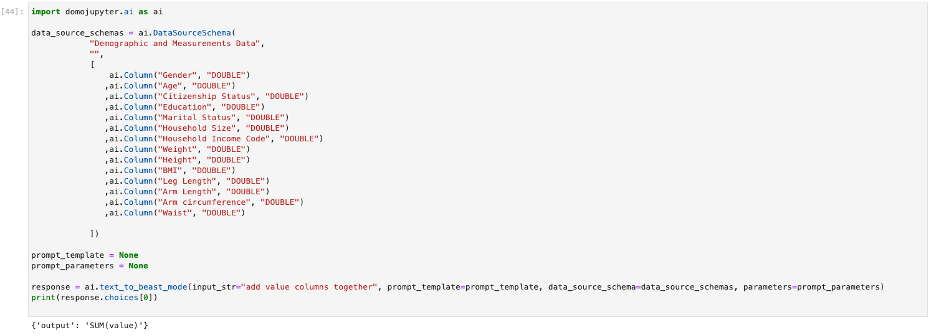 text\_to\_beast\_mode関数では、以下のパラメータを使用できます。 `input_str` を除くすべてのパラメータはオプションです。
```
def text_to_beast_mode(input_str: str,
prompt_template: Optional[PromptTemplate] = None,
data_source_schema: Optional[DataSourceSchema] = None,
parameters: Optional[dict[str, str]] = None,
model: Optional[str] = None,
model_configuration: Optional[dict[str, object]] = None,
system: Optional[str] = None):
"""
テキストをBeastmodeに変換
パラメータ:
input_str (str): 入力文字列
data_source_schema (DataSourceSchema): データソーススキーマ
prompt_template (PromptTemplate): プロンプト
parameters (dict[str, str]): パラメータ
model (str): モデル名
model_configuration (dict[str, object]): モデル設定
system (str): モデルへのプロンプトに含まれるデフォルトのシステム命令のオプションオーバーライド。
戻り値:
sql: SQL文字列
"""
```
## テキスト要約プロンプトを使用する
summarize\_textプロンプトは質問にもとづいてテキスト要約を提供します。この例では、AIサービスに提供されるプロンプトはtext\_summarizationにあります。
出力プロンプトは下部に表示されます。
text\_to\_beast\_mode関数では、以下のパラメータを使用できます。 `input_str` を除くすべてのパラメータはオプションです。
```
def text_to_beast_mode(input_str: str,
prompt_template: Optional[PromptTemplate] = None,
data_source_schema: Optional[DataSourceSchema] = None,
parameters: Optional[dict[str, str]] = None,
model: Optional[str] = None,
model_configuration: Optional[dict[str, object]] = None,
system: Optional[str] = None):
"""
テキストをBeastmodeに変換
パラメータ:
input_str (str): 入力文字列
data_source_schema (DataSourceSchema): データソーススキーマ
prompt_template (PromptTemplate): プロンプト
parameters (dict[str, str]): パラメータ
model (str): モデル名
model_configuration (dict[str, object]): モデル設定
system (str): モデルへのプロンプトに含まれるデフォルトのシステム命令のオプションオーバーライド。
戻り値:
sql: SQL文字列
"""
```
## テキスト要約プロンプトを使用する
summarize\_textプロンプトは質問にもとづいてテキスト要約を提供します。この例では、AIサービスに提供されるプロンプトはtext\_summarizationにあります。
出力プロンプトは下部に表示されます。
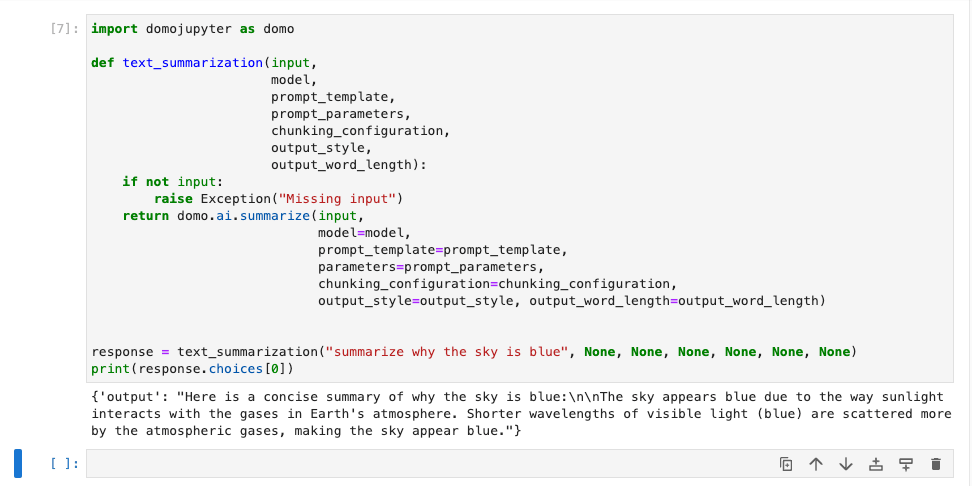 summarize\_text関数では、以下のパラメータを使用できます。 `input_str` を除くすべてのパラメータはオプションです。
```
def summarize(input_str: str,
prompt_template: Optional[PromptTemplate] = None,
parameters: Optional[dict[str, str]] = None,
model: Optional[str] = None,
model_configuration: Optional[dict[str, object]] = None,
system: Optional[str] = None,
chunking_configuration: Optional[ChunkingConfiguration] = None,
output_style: Optional[SummarizationOutputStyle] = None,
output_word_length: Optional[SizeBoundary] = None):
"""
テキスト要約
パラメータ:
input_str (str): 要約対象のテキスト情報。この属性は必須です。
prompt_template (PromptTemplate): プロンプトテンプレート
parameters (dict): パラメータ名とそれに対応する値を含む辞書。
PromptTemplate内のプレースホルダを置き換えるために使用します。
model (str): 要約に使用する言語モデルの名前/id
model_configuration (dict): 選択した言語モデルのカスタム構成パラメータを持つ辞書。
system (str): モデルへのプロンプトに含まれるデフォルトのシステム命令のオプションオーバーライド。
chunking_configuration (ChunkingConfiguration): 指定されたテキストをより小さいパーツまたはチャンクに分割するための設定。
output_style (SummarizationOutputStyle): 要約の出力のデザイン、構造化、および構成を決定。
output_word_length (SizeBoundary): ワード数にもとづいて出力要約の長さを制限するサイズ境界を定義。
戻り値:
response: 要約されたテキスト
"""
```
**注意:** 以下で説明するパラメータの動作は、現在の製品で確認する必要があります。このコンテンツはPMによるレビューのために提出されました。
`summarize()` 関数は、AIモデルを使用して長いテキストブロックから要約を生成します。要約のスタイル、構造、および長さを制御するオプション設定をサポートしています。必須パラメータは `input_str` のみです。
```python theme={"dark"}
summarize(input_str="Paste your text here...")
```
### オプションパラメータ
#### prompt\_template
**`prompt_template` (オプション) —** `PromptTemplate` クラスは、AIタスク用に再利用可能なプロンプト文字列を構造化するのに役立ちます。この実装は軽量であり、入力としてプロンプトテキスト全体という1つの値のみを必要とします。
```python theme={"dark"}
from domojupyter.ai.models.PromptTemplate import PromptTemplate
template_text = "Summarize the following text:\n{text}"
prompt = PromptTemplate(template=template_text)
```
#### parameters
**`parameters` (オプション) —** `prompt_template` 内のプレースホルダーを置き換えるために使用される辞書。
```python theme={"dark"}
parameters = {
"topic": "monthly sales report",
"audience": "executive leadership"
}
```
#### model および model\_configuration
* **`model` (オプション) —** 要約に使用する言語モデルの名前またはID。
* **`model_configuration` (オプション) —** 選択した言語モデルのカスタム構成パラメータを持つ辞書。
#### chunking\_configuration
**`chunking_configuration` (オプション) —** 大きなテキストブロックを要約する場合に使用します。要約の前に、テキストをより小さく扱いやすいチャンクに分割します。
```python theme={"dark"}
from domojupyter.ai.models.ChunkingConfiguration import ChunkingConfiguration
from domojupyter.ai.models.SeparatorType import SeparatorType
chunking_configuration = ChunkingConfiguration(
max_chunk_size=1000,
chunk_overlap=100,
separators=["\n\n", "\n", " "],
separator_type=SeparatorType.TEXT,
disallow_intermediate_chunks=False
)
```
使用可能な `SeparatorType` オプション: `CPP`、`GO`、`HTML`、`JAVA`、`JAVASCRIPT`、`LATEX`、`MARKDOWN`、`PROTO`、`PYTHON`、`RST`、`RUBY`、`SCALA`、`SOL`、`SWIFT`、`TEXT`。
#### output\_style
**`output_style` (オプション) —** 要約の出力のデザイン、構造化、および構成を決定します。
```python theme={"dark"}
from domojupyter.ai.models.SummarizationOutputStyle import SummarizationOutputStyle
output_style = SummarizationOutputStyle.BULLETED # Options: BULLETED, NUMBERED, PARAGRAPH
```
#### output\_word\_length
**`output_word_length` (オプション) —** ワード数にもとづいて出力要約の長さを制限するサイズ境界を定義します。
```python theme={"dark"}
from domojupyter.ai.models.SizeBoundary import SizeBoundary
output_word_length = SizeBoundary(min_bound=75, max_bound=150)
```
### 例
次の例では、複数のオプションパラメータを組み合わせています。
```python theme={"dark"}
from domojupyter.ai.models.ChunkingConfiguration import ChunkingConfiguration
from domojupyter.ai.models.SeparatorType import SeparatorType
from domojupyter.ai.models.SummarizationOutputStyle import SummarizationOutputStyle
from domojupyter.ai.models.SizeBoundary import SizeBoundary
summary = summarize(
input_str=long_text,
output_style=SummarizationOutputStyle.BULLETED,
output_word_length=SizeBoundary(min_bound=75, max_bound=150),
chunking_configuration=ChunkingConfiguration(
max_chunk_size=1200,
chunk_overlap=100,
separators=["\n", ".", " "],
separator_type=SeparatorType.MARKDOWN,
disallow_intermediate_chunks=False
)
)
```
日本語
summarize\_text関数では、以下のパラメータを使用できます。 `input_str` を除くすべてのパラメータはオプションです。
```
def summarize(input_str: str,
prompt_template: Optional[PromptTemplate] = None,
parameters: Optional[dict[str, str]] = None,
model: Optional[str] = None,
model_configuration: Optional[dict[str, object]] = None,
system: Optional[str] = None,
chunking_configuration: Optional[ChunkingConfiguration] = None,
output_style: Optional[SummarizationOutputStyle] = None,
output_word_length: Optional[SizeBoundary] = None):
"""
テキスト要約
パラメータ:
input_str (str): 要約対象のテキスト情報。この属性は必須です。
prompt_template (PromptTemplate): プロンプトテンプレート
parameters (dict): パラメータ名とそれに対応する値を含む辞書。
PromptTemplate内のプレースホルダを置き換えるために使用します。
model (str): 要約に使用する言語モデルの名前/id
model_configuration (dict): 選択した言語モデルのカスタム構成パラメータを持つ辞書。
system (str): モデルへのプロンプトに含まれるデフォルトのシステム命令のオプションオーバーライド。
chunking_configuration (ChunkingConfiguration): 指定されたテキストをより小さいパーツまたはチャンクに分割するための設定。
output_style (SummarizationOutputStyle): 要約の出力のデザイン、構造化、および構成を決定。
output_word_length (SizeBoundary): ワード数にもとづいて出力要約の長さを制限するサイズ境界を定義。
戻り値:
response: 要約されたテキスト
"""
```
**注意:** 以下で説明するパラメータの動作は、現在の製品で確認する必要があります。このコンテンツはPMによるレビューのために提出されました。
`summarize()` 関数は、AIモデルを使用して長いテキストブロックから要約を生成します。要約のスタイル、構造、および長さを制御するオプション設定をサポートしています。必須パラメータは `input_str` のみです。
```python theme={"dark"}
summarize(input_str="Paste your text here...")
```
### オプションパラメータ
#### prompt\_template
**`prompt_template` (オプション) —** `PromptTemplate` クラスは、AIタスク用に再利用可能なプロンプト文字列を構造化するのに役立ちます。この実装は軽量であり、入力としてプロンプトテキスト全体という1つの値のみを必要とします。
```python theme={"dark"}
from domojupyter.ai.models.PromptTemplate import PromptTemplate
template_text = "Summarize the following text:\n{text}"
prompt = PromptTemplate(template=template_text)
```
#### parameters
**`parameters` (オプション) —** `prompt_template` 内のプレースホルダーを置き換えるために使用される辞書。
```python theme={"dark"}
parameters = {
"topic": "monthly sales report",
"audience": "executive leadership"
}
```
#### model および model\_configuration
* **`model` (オプション) —** 要約に使用する言語モデルの名前またはID。
* **`model_configuration` (オプション) —** 選択した言語モデルのカスタム構成パラメータを持つ辞書。
#### chunking\_configuration
**`chunking_configuration` (オプション) —** 大きなテキストブロックを要約する場合に使用します。要約の前に、テキストをより小さく扱いやすいチャンクに分割します。
```python theme={"dark"}
from domojupyter.ai.models.ChunkingConfiguration import ChunkingConfiguration
from domojupyter.ai.models.SeparatorType import SeparatorType
chunking_configuration = ChunkingConfiguration(
max_chunk_size=1000,
chunk_overlap=100,
separators=["\n\n", "\n", " "],
separator_type=SeparatorType.TEXT,
disallow_intermediate_chunks=False
)
```
使用可能な `SeparatorType` オプション: `CPP`、`GO`、`HTML`、`JAVA`、`JAVASCRIPT`、`LATEX`、`MARKDOWN`、`PROTO`、`PYTHON`、`RST`、`RUBY`、`SCALA`、`SOL`、`SWIFT`、`TEXT`。
#### output\_style
**`output_style` (オプション) —** 要約の出力のデザイン、構造化、および構成を決定します。
```python theme={"dark"}
from domojupyter.ai.models.SummarizationOutputStyle import SummarizationOutputStyle
output_style = SummarizationOutputStyle.BULLETED # Options: BULLETED, NUMBERED, PARAGRAPH
```
#### output\_word\_length
**`output_word_length` (オプション) —** ワード数にもとづいて出力要約の長さを制限するサイズ境界を定義します。
```python theme={"dark"}
from domojupyter.ai.models.SizeBoundary import SizeBoundary
output_word_length = SizeBoundary(min_bound=75, max_bound=150)
```
### 例
次の例では、複数のオプションパラメータを組み合わせています。
```python theme={"dark"}
from domojupyter.ai.models.ChunkingConfiguration import ChunkingConfiguration
from domojupyter.ai.models.SeparatorType import SeparatorType
from domojupyter.ai.models.SummarizationOutputStyle import SummarizationOutputStyle
from domojupyter.ai.models.SizeBoundary import SizeBoundary
summary = summarize(
input_str=long_text,
output_style=SummarizationOutputStyle.BULLETED,
output_word_length=SizeBoundary(min_bound=75, max_bound=150),
chunking_configuration=ChunkingConfiguration(
max_chunk_size=1200,
chunk_overlap=100,
separators=["\n", ".", " "],
separator_type=SeparatorType.MARKDOWN,
disallow_intermediate_chunks=False
)
)
```
日本語