> ## Documentation Index
> Fetch the complete documentation index at: https://domoinc-bradley-turek-pfilter-operators-reference.mintlify.site/llms.txt
> Use this file to discover all available pages before exploring further.
# Update and Switch Card Assets
## Intro
The **Asset Library** stores all of your assets in Domo, but each card is unique and can be powered by a different design version of an asset. If you update an asset, you may need to update each card individually. You can find instructions for doing this below in [Update an Asset](#update-an-asset).
In some cases, you may need to connect a card to a different asset. A possible use case is moving from a demo or custom version of an app to another version. This requires you to switch any cards to the correct asset. See instructions for how to Switch an Asset below.
## Update an Asset
1. From the navigation header, select **More** > **Asset Library**.
2. In the
**Asset Library**, locate the app you want to update.
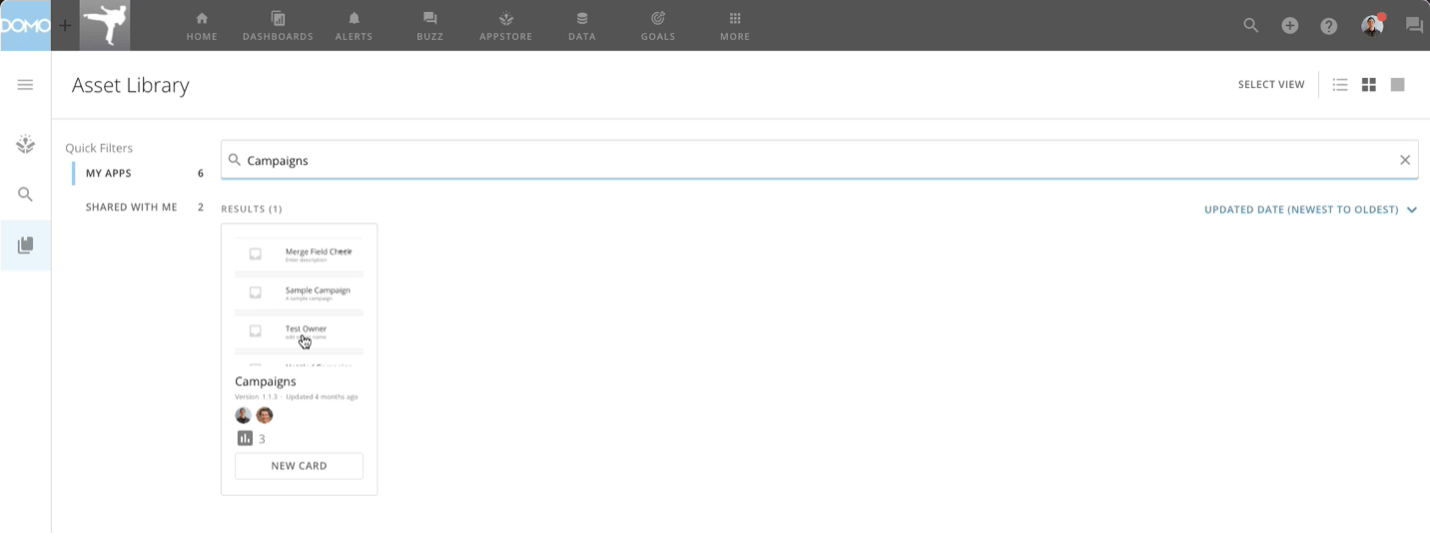 3. Select the app to display the
**Overview** tab. Under the app name, there is a list of the app's versions.
3. Select the app to display the
**Overview** tab. Under the app name, there is a list of the app's versions.
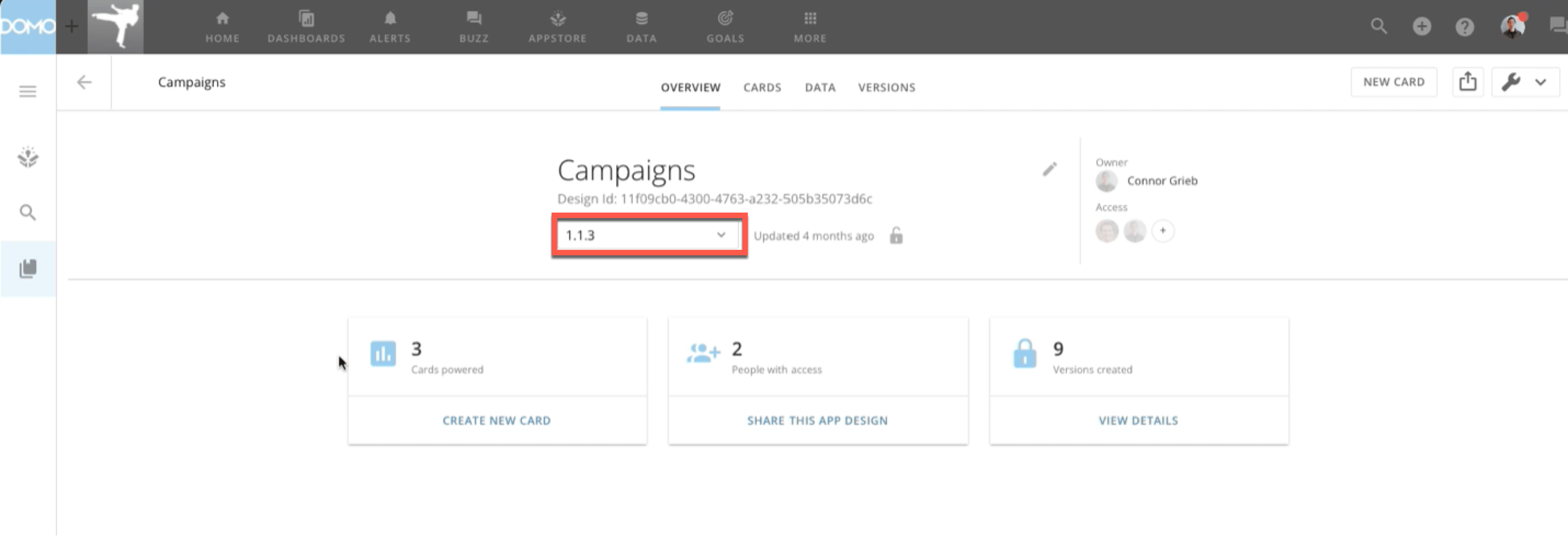 4. Select the version you want or select
**Latest version**, which automatically updates the app to the latest version in the future.
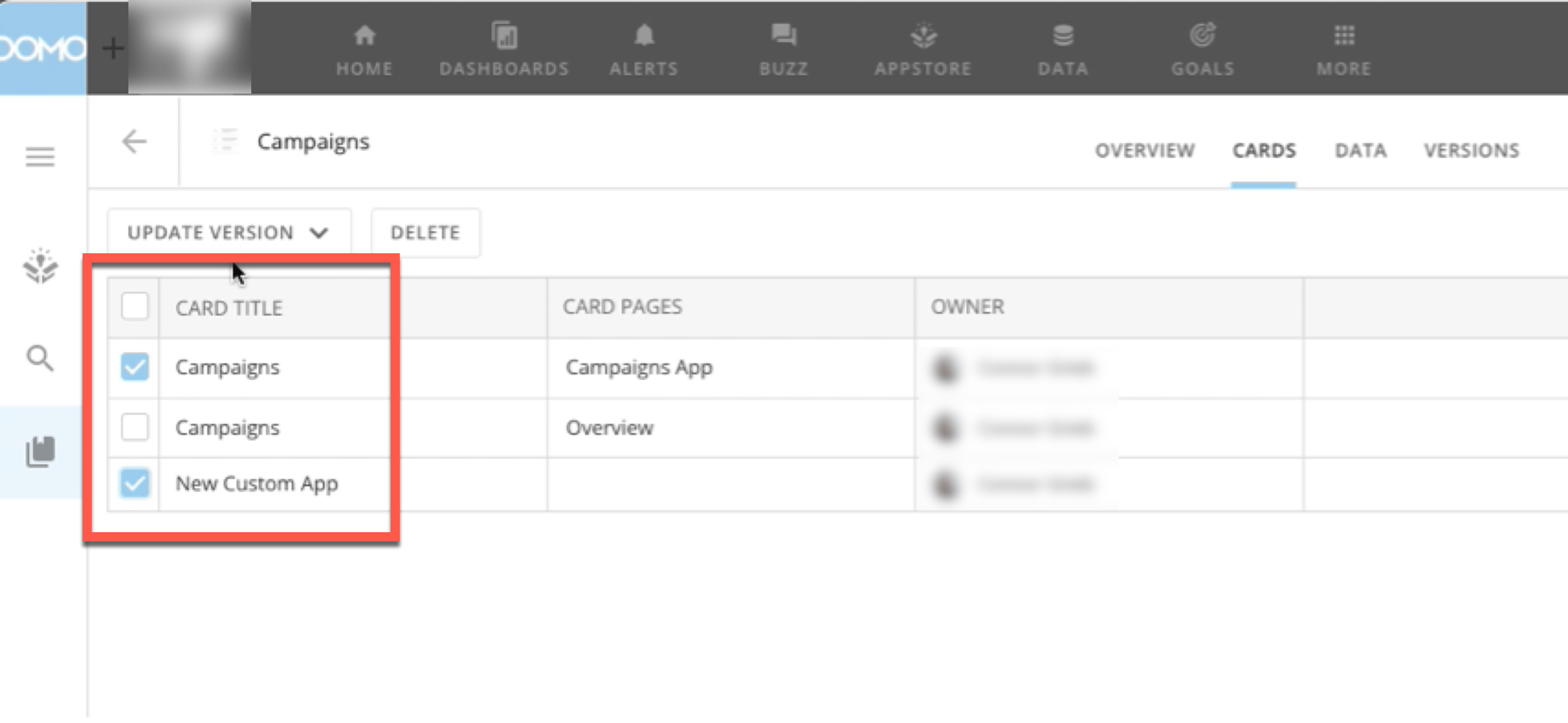
5. Go to the
**Cards** tab. A list of cards deployed by the app displays.
6. Select the cards you want to update by checking the boxes.
4. Select the version you want or select
**Latest version**, which automatically updates the app to the latest version in the future.
5. Go to the
**Cards** tab. A list of cards deployed by the app displays.
6. Select the cards you want to update by checking the boxes.
 7. Select
**Update Version** and choose the version you would like to update the selected cards to.
7. Select
**Update Version** and choose the version you would like to update the selected cards to.
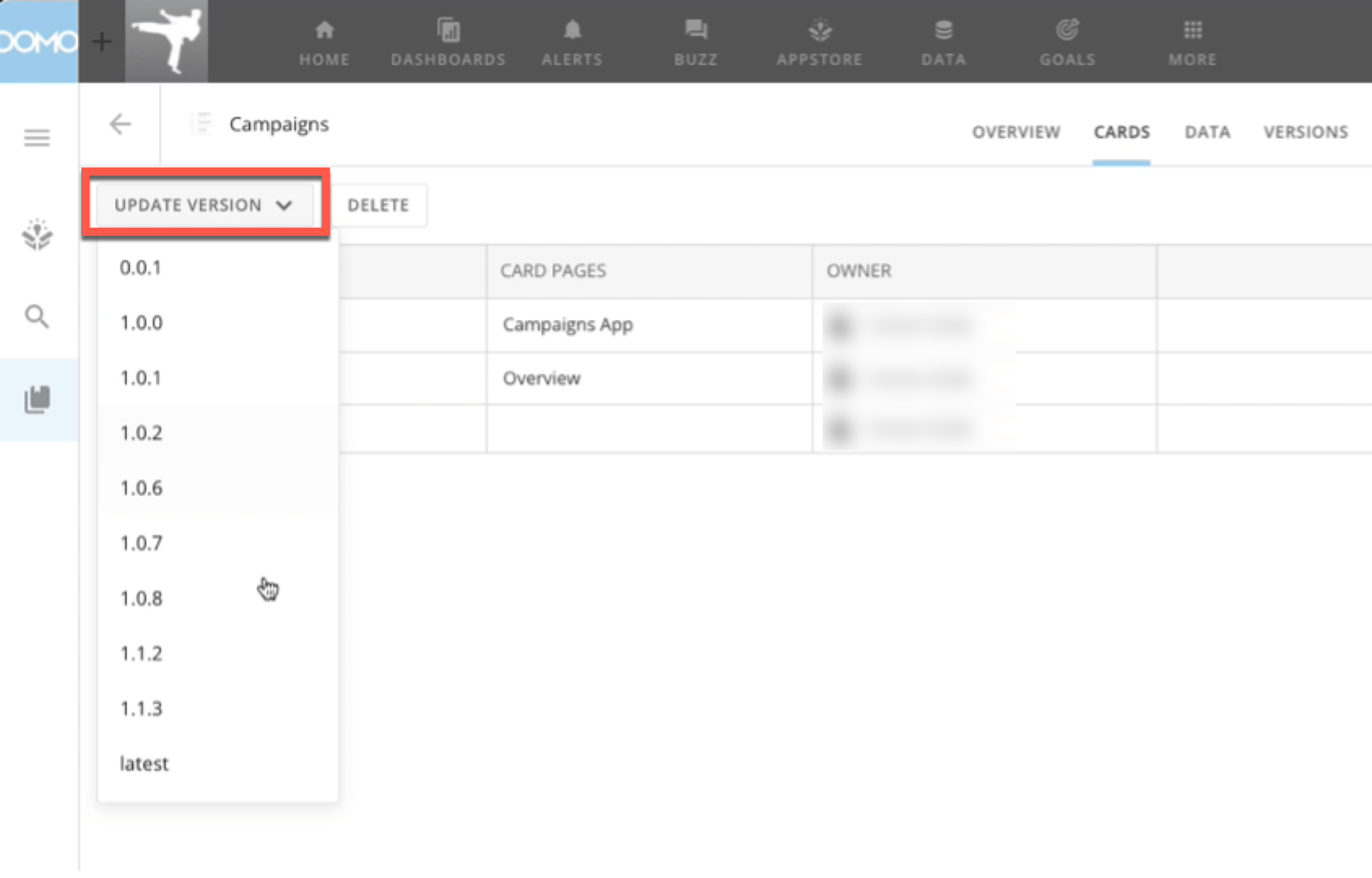 The cards you selected are now updated.
## Switch an Asset
1. Locate the card you want to switch the asset for.
2. Hover over the card until
**Card options** displays in the top right corner. Select the arrow to display the card options, then **Edit Card**.
The card editor displays.
3. In the card editor, locate the icon for the app in the top left corner and select it.
The cards you selected are now updated.
## Switch an Asset
1. Locate the card you want to switch the asset for.
2. Hover over the card until
**Card options** displays in the top right corner. Select the arrow to display the card options, then **Edit Card**.
The card editor displays.
3. In the card editor, locate the icon for the app in the top left corner and select it.
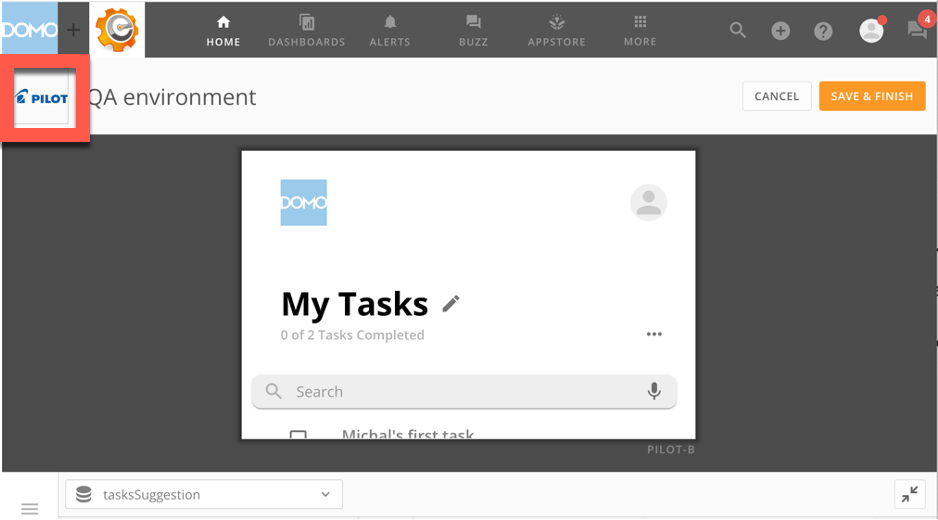 The **Overview** tab displays.
4. Select **Back** in the top left corner.
The **Overview** tab displays.
4. Select **Back** in the top left corner.
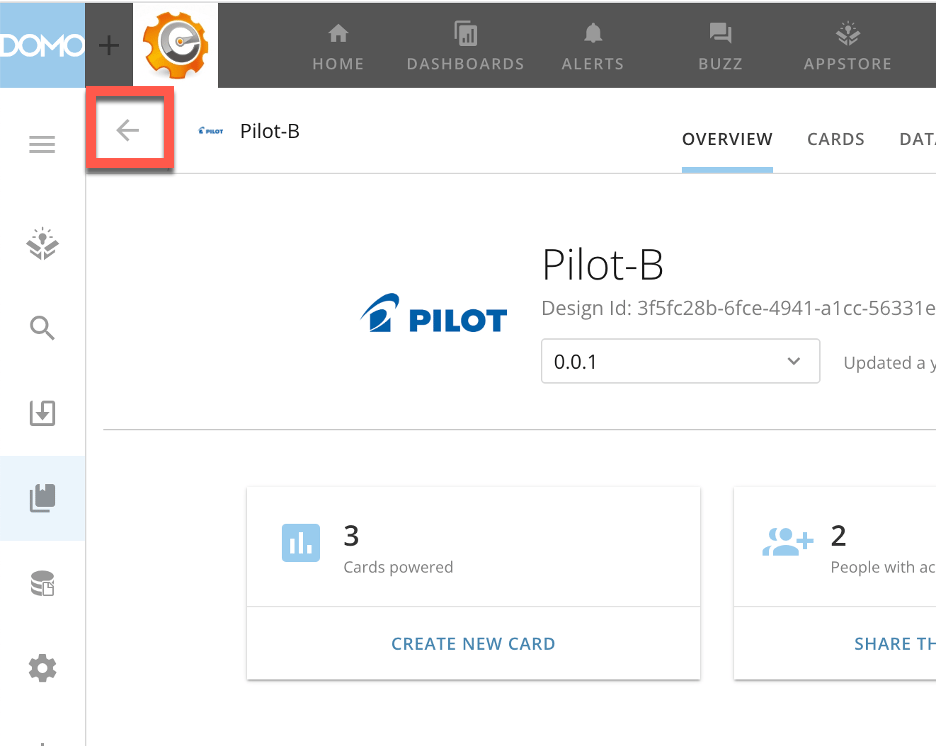 The **Asset Library** displays.
5. Search for and find the asset you want to power the card.
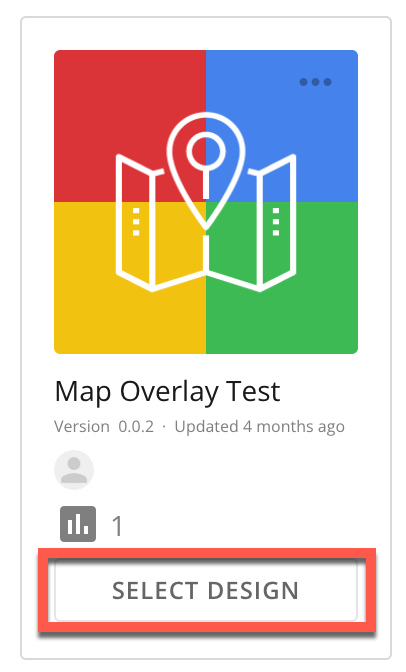
6. Click **Select Design**.
The **Asset Library** displays.
5. Search for and find the asset you want to power the card.
6. Click **Select Design**.
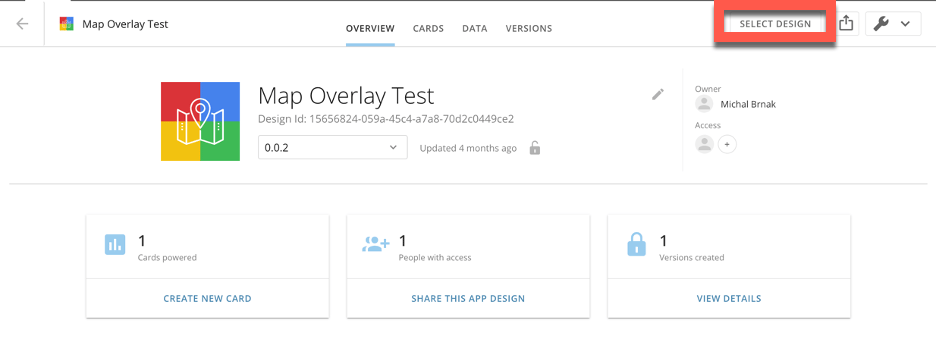
 You can also do this from the design **Details** screen.
 7. Connect the card according to the instructions for that app in the Knowledge Base.
8. Select **Save & Finish**.
The card is now connected to the new asset. You can confirm this by searching for the asset in the **Asset Library**, going to the **Cards** tab, and verifying that the card you connected now displays in the list.
7. Connect the card according to the instructions for that app in the Knowledge Base.
8. Select **Save & Finish**.
The card is now connected to the new asset. You can confirm this by searching for the asset in the **Asset Library**, going to the **Cards** tab, and verifying that the card you connected now displays in the list.