> ## Documentation Index
> Fetch the complete documentation index at: https://domoinc-bradley-turek-pfilter-operators-reference.mintlify.site/llms.txt
> Use this file to discover all available pages before exploring further.
# Migrate from Federated to Cloud Integrations
## Intro
Only Federated v2 DataSets can be converted to Cloud Integrations. Federated v1 DataSets must be converted to v2 before the migration can be performed.
***
## Migrate a Federated DataSet to Cloud Integrations
1. In the Domo Data Center, go to **DataSets** and and select the DataSet you want to migrate to view its Details page.
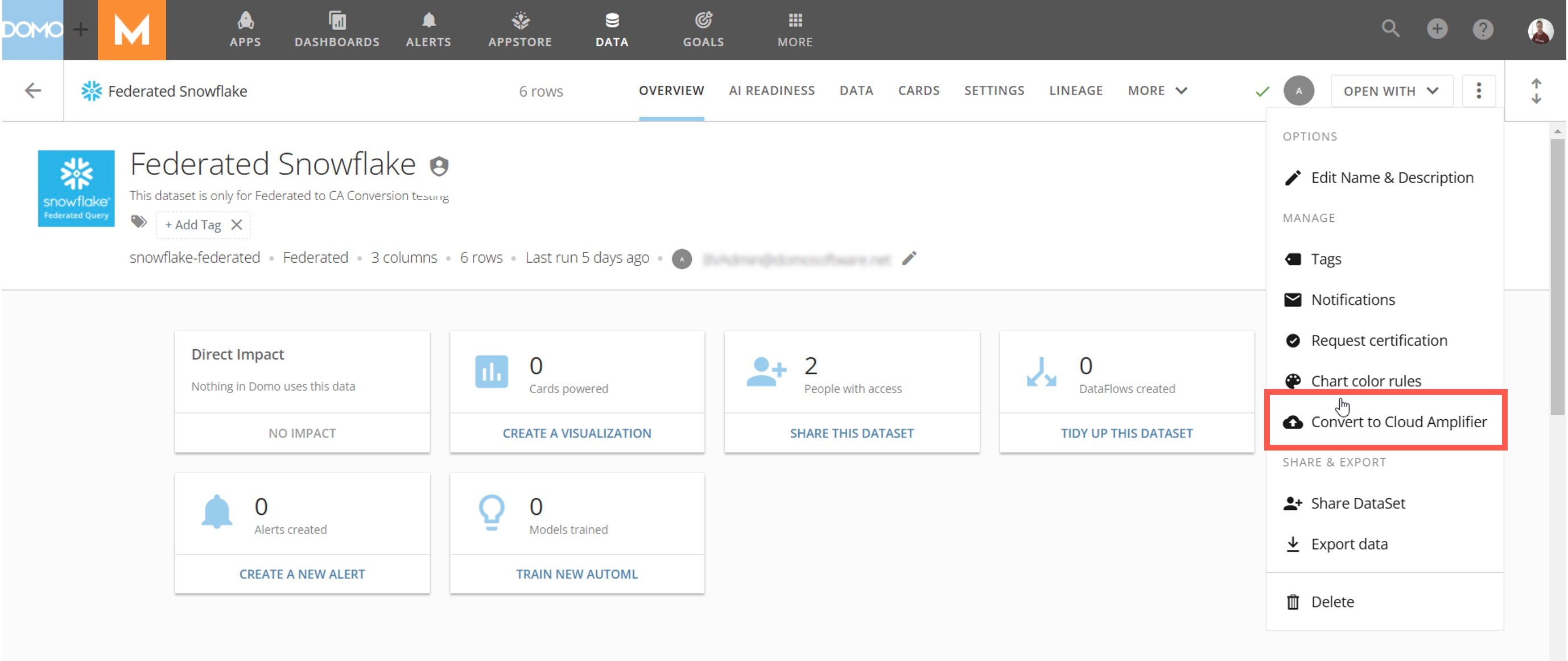
2. From the Details page, select **More** (three vertical dots icon) > **Convert to Cloud Integrations** to display the conversion modal.
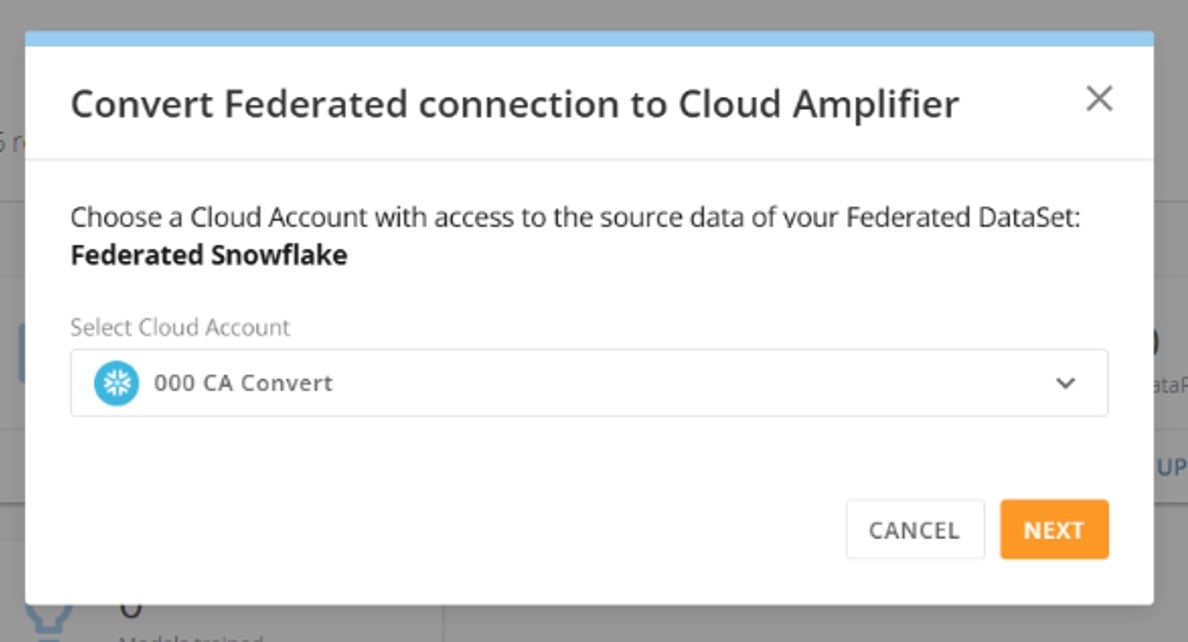
 3. Use the **Select Cloud Account** dropdown in the modal to select the Snowflake Cloud Integrations connection you want to use. Learn how to configure a [Snowflake Cloud Integrations connection](/s/article/4402322966807).
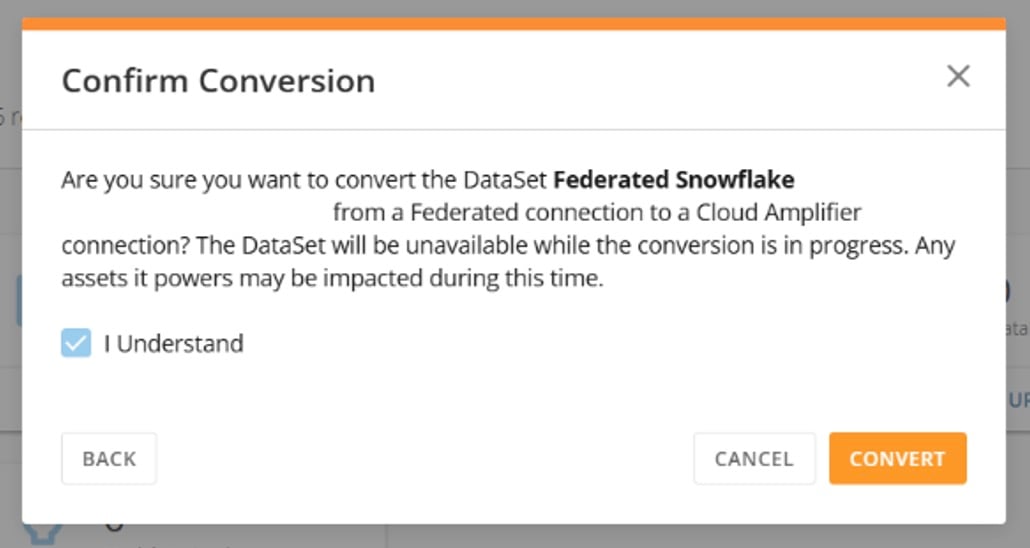
 4. Select **Next** and check the box to acknowledge that the DataSet will be unavailable during the conversion process. Then select **Convert**.
 A successful conversion displays a "Conversion Complete" message.
## Revert a DataSet to a Federated Connection
Follow these steps to revert a DataSet from a Cloud Integration connection to a federated connection:
1. In the Domo Data Center, go to **DataSets** and and select the DataSet you want to migrate to view its Details page.
2. From the Details page, select **More** (three vertical dots icon) > **Revert to federated data** to display the reversion modal.
A successful conversion displays a "Conversion Complete" message.
## Revert a DataSet to a Federated Connection
Follow these steps to revert a DataSet from a Cloud Integration connection to a federated connection:
1. In the Domo Data Center, go to **DataSets** and and select the DataSet you want to migrate to view its Details page.
2. From the Details page, select **More** (three vertical dots icon) > **Revert to federated data** to display the reversion modal.
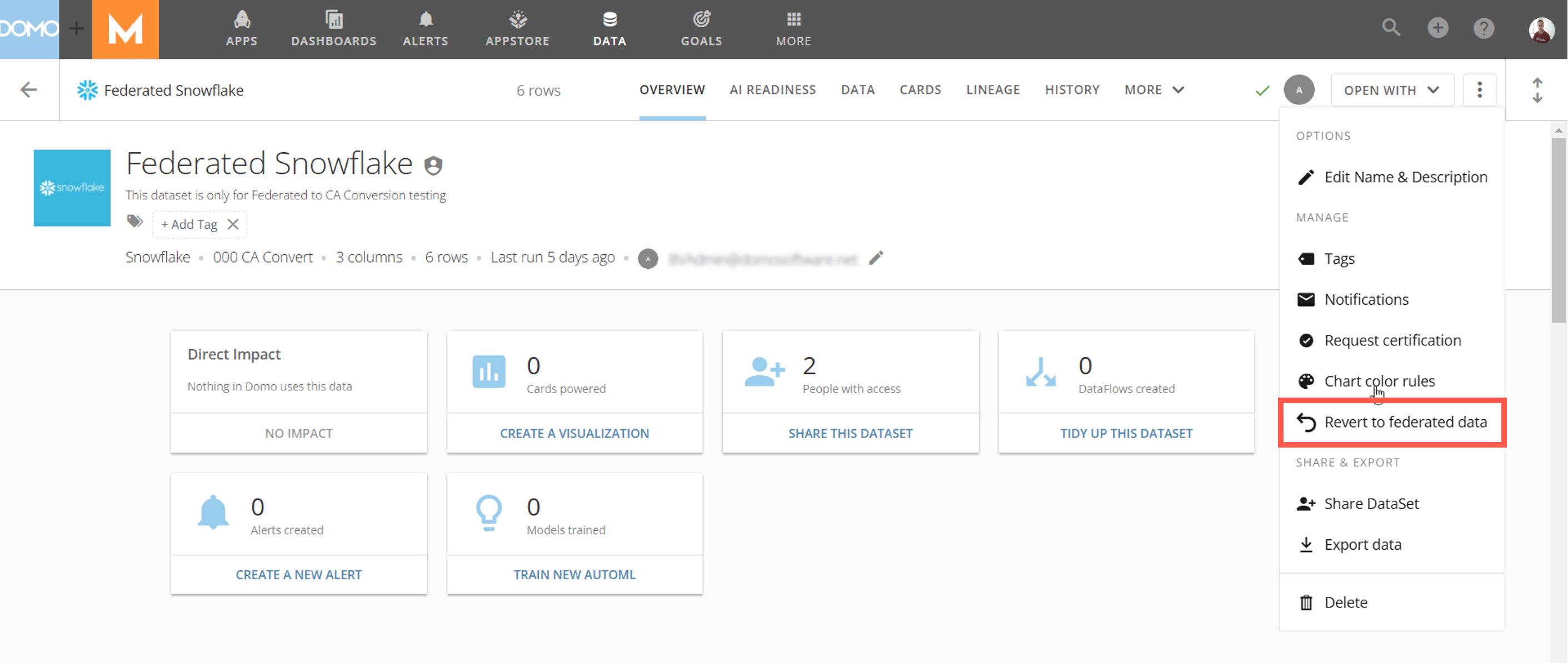 3. Use the checkbox to acknowledge that the DataSet will not be available during the reversion process, then select **Revert**.
A successful reversion displays a "Reversion Complete" message.
3. Use the checkbox to acknowledge that the DataSet will not be available during the reversion process, then select **Revert**.
A successful reversion displays a "Reversion Complete" message.