> ## Documentation Index
> Fetch the complete documentation index at: https://domoinc-bradley-turek-pfilter-operators-reference.mintlify.site/llms.txt
> Use this file to discover all available pages before exploring further.
# Microsoft OneDrive Business Connector
## Intro
Microsoft OneDrive for Business is an online file sharing and personal cloud content management service for businesses. For more information about the OneDrive API, see [https://msdn.microsoft.com/en-us/lib.../dn659752.aspx](https://msdn.microsoft.com/en-us/library/office/dn659752.aspx).
You connect to your OneDrive for Business account in the Data Center. This topic discusses the fields and menus that are specific to the OneDrive for Business connector user interface. General information for adding DataSets, setting update schedules, and editing DataSet information is discussed in [Adding a DataSet Using a Connector](/s/article/360042926274).
## Prerequisites
To connect to your OneDrive for Business account and create a DataSet, you must have the following:
* A OneDrive for Business client secret
* A Microsoft username and password
If you are using the Microsoft Graph, you will need to set your redirect\_uri to a different URL depending on whether you are using a newly registered or existing app.
* If you are using a *newly registered* app, set your redirect\_uri to [https://oauth.domo.com/api/data/v1/oauth/providers/onedrive-business/exchange](https://oauth.domo.com/api/data/v1/oauth/providers/onedrive-business/exchange).
* If you are using an *existing* app, set your redirect\_uri to [https://oauth.domo.com/api/data/v1/oauth/providers/microsoft-onedrive-business/exchange](https://oauth.domo.com/api/data/v1/oauth/providers/microsoft-onedrive-business/exchange).
For instructions about obtaining a OneDrive for Business client ID, client secret, and registering your app using SharePoint Server 2016, see [https://dev.onedrive.com/app-registration-server.htm](https://dev.onedrive.com/app-registration-server.htm).
For instructions about registering your app for Microsoft Graph, see [https://docs.microsoft.com/en-us/onedrive/app-registration.htm](https://docs.microsoft.com/en-us/onedrive/developer/rest-api/getting-started/app-registration)
To connect to Microsoft OneDrive for Business to retrieve the information, you must have the following:
* An installed Microsoft Azure app.
* The CLIENT ID and CLIENT SECRET. To generate an app and locate these credentials, see [Microsoft's documentation](https://docs.microsoft.com/en-us/azure/active-directory/develop/quickstart-register-app). You may need the following information to register for the app:
* **Azure Portal:** [https://portal.azure.com/](https://portal.azure.com/)
* **Sharepoint App to Register:** SharePoint Online Rest API
* **Domo Re-direct URL:** [https://oauth.domo.com/api/data/v1/oauth/providers/microsoft-onedrive-business/exchange](https://oauth.domo.com/api/data/v1/oauth/providers/microsoft-onedrive-business/exchange)
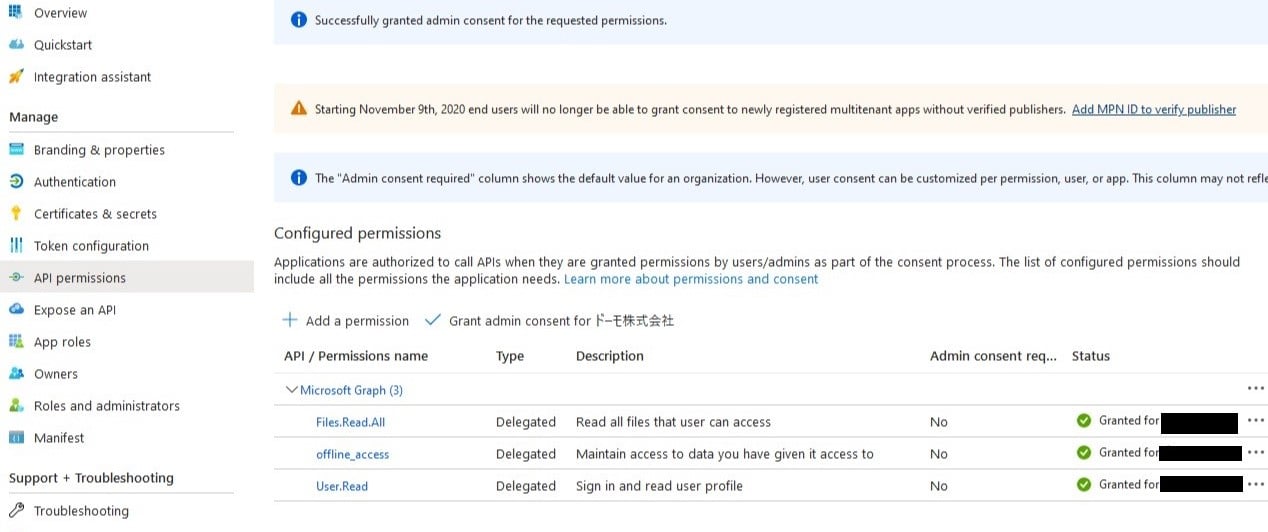
* The Microsoft OneDrive for Business Connector needs the following API permissions.
* User.Read
* Files.Read.All
* offline\_access
## Setting Up the Azure Portal Video
To set up the Azure portal, watch the YouTube video, [How to Set Up the OneDrive for Business Connector](https://www.youtube.com/watch?v=NN9e05qEa3A).
### To Obtain the OneDrive CLIENT ID:
1. Go to [https://portal.azure.com](https://portal.azure.com/).
2. Select **Microsoft Entra ID** ([https://learn.microsoft.com/en-us/entra/fundamentals/new-name](https://learn.microsoft.com/en-us/entra/fundamentals/new-name))**> App registrations**.
3. Find and click on your web app.
4. The "application" ID is your CLIENT ID.
### To obtain the OneDrive CLIENT SECRET:
1. Go to [https://portal.azure.com](https://portal.azure.com/).
2. Select **Microsoft Entra ID** ([https://learn.microsoft.com/en-us/entra/fundamentals/new-name](https://learn.microsoft.com/en-us/entra/fundamentals/new-name))**> App registrations**.
3. Find and click on your web app.
4. Open **Certificates and secrets**.
5. Click **+New Value**.
6. Provide the value description and the expiry period for your secret. Click **Add**.
7. Your new value will appear. Copy the Value field and paste it in your Domo connector Value field. 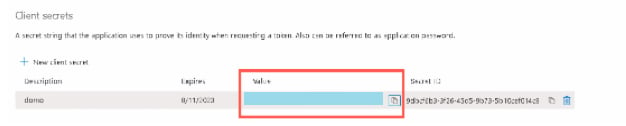 ### Creating an Azure App for Enterprise OAuth
To create a Microsoft Azure app, do the following:
1. Log into [https://portal.azure.com](https://portal.azure.com/).
2. Click on **App registrations**.
### Creating an Azure App for Enterprise OAuth
To create a Microsoft Azure app, do the following:
1. Log into [https://portal.azure.com](https://portal.azure.com/).
2. Click on **App registrations**.  3. Click **New registration**.
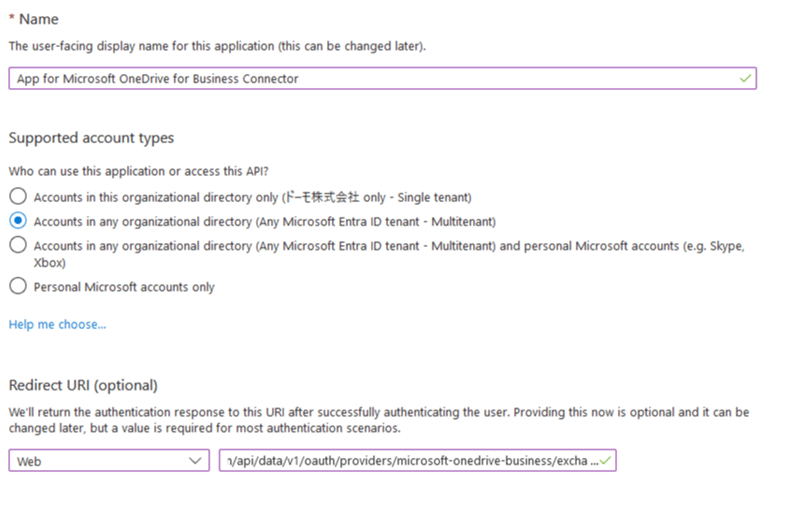
3. Enter the application name and select the supported account type. Enter the Redirect URI for Web as [https://oauth.domo.com/api/data/v1/oauth/providers/microsoft-onedrive-business/exchange](https://oauth.domo.com/api/data/v1/oauth/providers/microsoft-onedrive-business/exchange).
3. Click **New registration**.
3. Enter the application name and select the supported account type. Enter the Redirect URI for Web as [https://oauth.domo.com/api/data/v1/oauth/providers/microsoft-onedrive-business/exchange](https://oauth.domo.com/api/data/v1/oauth/providers/microsoft-onedrive-business/exchange).
 4. Click **Register**.
5. Now, click **API Permissions**.
4. Click **Register**.
5. Now, click **API Permissions**.  7. Click **+Add Permissions** button.
6. Select the permissions as required.
7. After adding the permissions, all configured permissions will be listed as below.
7. Click **+Add Permissions** button.
6. Select the permissions as required.
7. After adding the permissions, all configured permissions will be listed as below.
 ## Connecting to Your OneDrive for Business Account
This section enumerates the **Permission** settings within Microsoft needed for Domo access as well as options in the **Credentials** and **Details** panes in the OneDrive for Business Connector page. The components of the other panes in this page, **Scheduling** and **Name & Describe Your DataSet**, are universal across most connector types and are discussed in greater length in [Adding a DataSet Using a Data Connector](/s/article/360042926274).
### Credentials Pane
This pane contains fields for entering credentials to connect to your OneDrive for Business account. The following table describes what is needed for each field:
| Field | Description |
| ------------- | ----------------------------------------------- |
| Client ID | Enter your OneDrive for Business client ID. |
| Client Secret | Enter your OneDrive for Business client secret. |
Once you have entered these credentials, you are taken to the Microsoft login screen, where you can enter the username and password for your Microsoft account. After you successfully connect, you can use the same account any time you go to create a new OneDrive for Business DataSet. You can manage connector accounts in the **Accounts** tab in the Data Center. For more information about this tab, see [Managing User Accounts for Connectors](/s/article/360042926054).
### Details Pane
This pane contains a primary **Report** menu, along with various other menus which may or may not appear depending on the report type you select.
#### Report
Select the OneDrive for Business report you want to run. The following reports are available:
| Report Name | Description |
| --------------------------------------------------------- | --------------------------------------------------------------------------------------------------------------------------------------------------------------------------------------------- |
| Download Shared File (Using SharingURL) | Downloads a shared file into Domo as a DataSet. You specify the file type, file or folder path, and other information. |
| Children | Lists the children of the item with the specified folder or path. |
| Default Drive | Returns metadata about the authenticated user's default drive in OneDrive. |
| Download File | Downloads a file into Domo as a DataSet. You specify the file type, file or folder path, and other information. |
| Drive By Id | Lists drives for a selected drive ID. |
| Drives | Lists the available drives for the authenticated user. |
| Properties | Returns properties for the item with the specified file/folder or path. |
| Recent Items | Returns a list of items that have been recently used by the authenticated user. This list includes items that are in the user's drive as well as items they have access to from other drives. |
| Shared Items — DEPRECATED | Lists items that are shared with the authenticated user. |
| Download Nested Children Shared File — DEPRECATED | Downloads a shared file from a nested children folder into Domo as a DataSet. You specify the folder name and the complete file path, along with other information. |
| Download Shared File (Search Endpoint) — DEPRECATED | Downloads a shared file into Domo as a DataSet. You specify the file type, file or folder path, and other information. |
| Download Shared File (SharedWithMe Endpoint) — DEPRECATED | Downloads a shared file into Domo as a DataSet. You specify the file type and file/folder or path, along with other information. |
| Download Children Shared File — DEPRECATED | Downloads a shared file from the children folder into Domo as a DataSet. You specify the file type, file or folder path, and other information. |
**Deprecated reports:** Use the **Download Shared File (Using SharingURL)** report instead of any of the deprecated reports listed above.
#### Other Menus
The following menus may also appear depending on the report you select:
| Menu | Description |
| ------------------------------------------------------ | --------------------------------------------------------------------------------------------------------------------------------------------------------------------------------------------------------------------------------------------------------- |
| Addressing | Specify whether the addressing for the item is ID-based (in which case, you specify a file or folder name) or path-based (in which case, you specify the file path). |
| Path | Enter the relative path of the file or folder you want to retrieve a report for. For example: `/Documents/test.csv` |
| File/Folder Name | Enter the name (or a portion of the name), without extension, of the MS OneDrive file/folder to retrieve. The connector returns the most recently created or modified file matching the name, based on what you have selected in the **Date Field** menu. |
| Match Type | Specify whether the retrieve file starts with or contains the name you have entered in **File Name**. |
| Parent Folder/Parent Folder Name | Enter a complete folder name (not case-sensitive) to limit the file search to a specific folder's root contents. Subfolders are ignored. If you leave this blank, the search includes all files in all folders for which you have access. |
| Date Field | Specify whether to retrieve a file based on its creation or last modified date. This is useful when there are multiple files containing the name you have entered in **File Name**. |
| File Type | Select the file type for the data file you want to retrieve. |
| Is Password Protected? | Select whether the file is password-protected. |
| Sheet Name | Enter the sheet name you want to retrieve in the specified spreadsheet. |
| Sheet Name Match Type | Select the match type you want to perform on the sheet name. |
| File Name or Portion of File Name to Search For in ZIP | Enter the name of the zipped file to retrieve. Leave blank to retrieve the first zipped file. |
| Zipped File Type | Select the file type for the zipped data file you want to retrieve. |
| Drive ID | Select the drive you want to retrieve information for. |
## FAQ
You can use the **Download Shared File (Using SharingURL)** report to access shared files. This report supports the following file formats: CSV, XLS, XLSX, XML, ZIP, and GZIP.
The Sharing URL can be obtained through two distinct methods:
* * **Browser Address Bar:** Use the file's URL as displayed in the browser address bar during file viewing.
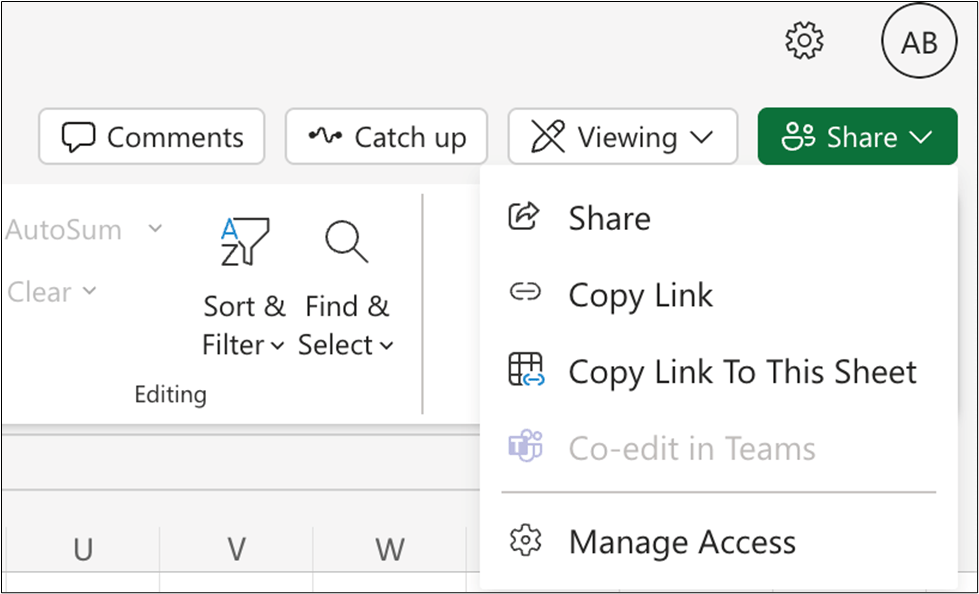
* **OneDrive Generation:** Utilize the URL generated by **OneDrive** upon selecting **Copy link** from the **Share** menu.
## Connecting to Your OneDrive for Business Account
This section enumerates the **Permission** settings within Microsoft needed for Domo access as well as options in the **Credentials** and **Details** panes in the OneDrive for Business Connector page. The components of the other panes in this page, **Scheduling** and **Name & Describe Your DataSet**, are universal across most connector types and are discussed in greater length in [Adding a DataSet Using a Data Connector](/s/article/360042926274).
### Credentials Pane
This pane contains fields for entering credentials to connect to your OneDrive for Business account. The following table describes what is needed for each field:
| Field | Description |
| ------------- | ----------------------------------------------- |
| Client ID | Enter your OneDrive for Business client ID. |
| Client Secret | Enter your OneDrive for Business client secret. |
Once you have entered these credentials, you are taken to the Microsoft login screen, where you can enter the username and password for your Microsoft account. After you successfully connect, you can use the same account any time you go to create a new OneDrive for Business DataSet. You can manage connector accounts in the **Accounts** tab in the Data Center. For more information about this tab, see [Managing User Accounts for Connectors](/s/article/360042926054).
### Details Pane
This pane contains a primary **Report** menu, along with various other menus which may or may not appear depending on the report type you select.
#### Report
Select the OneDrive for Business report you want to run. The following reports are available:
| Report Name | Description |
| --------------------------------------------------------- | --------------------------------------------------------------------------------------------------------------------------------------------------------------------------------------------- |
| Download Shared File (Using SharingURL) | Downloads a shared file into Domo as a DataSet. You specify the file type, file or folder path, and other information. |
| Children | Lists the children of the item with the specified folder or path. |
| Default Drive | Returns metadata about the authenticated user's default drive in OneDrive. |
| Download File | Downloads a file into Domo as a DataSet. You specify the file type, file or folder path, and other information. |
| Drive By Id | Lists drives for a selected drive ID. |
| Drives | Lists the available drives for the authenticated user. |
| Properties | Returns properties for the item with the specified file/folder or path. |
| Recent Items | Returns a list of items that have been recently used by the authenticated user. This list includes items that are in the user's drive as well as items they have access to from other drives. |
| Shared Items — DEPRECATED | Lists items that are shared with the authenticated user. |
| Download Nested Children Shared File — DEPRECATED | Downloads a shared file from a nested children folder into Domo as a DataSet. You specify the folder name and the complete file path, along with other information. |
| Download Shared File (Search Endpoint) — DEPRECATED | Downloads a shared file into Domo as a DataSet. You specify the file type, file or folder path, and other information. |
| Download Shared File (SharedWithMe Endpoint) — DEPRECATED | Downloads a shared file into Domo as a DataSet. You specify the file type and file/folder or path, along with other information. |
| Download Children Shared File — DEPRECATED | Downloads a shared file from the children folder into Domo as a DataSet. You specify the file type, file or folder path, and other information. |
**Deprecated reports:** Use the **Download Shared File (Using SharingURL)** report instead of any of the deprecated reports listed above.
#### Other Menus
The following menus may also appear depending on the report you select:
| Menu | Description |
| ------------------------------------------------------ | --------------------------------------------------------------------------------------------------------------------------------------------------------------------------------------------------------------------------------------------------------- |
| Addressing | Specify whether the addressing for the item is ID-based (in which case, you specify a file or folder name) or path-based (in which case, you specify the file path). |
| Path | Enter the relative path of the file or folder you want to retrieve a report for. For example: `/Documents/test.csv` |
| File/Folder Name | Enter the name (or a portion of the name), without extension, of the MS OneDrive file/folder to retrieve. The connector returns the most recently created or modified file matching the name, based on what you have selected in the **Date Field** menu. |
| Match Type | Specify whether the retrieve file starts with or contains the name you have entered in **File Name**. |
| Parent Folder/Parent Folder Name | Enter a complete folder name (not case-sensitive) to limit the file search to a specific folder's root contents. Subfolders are ignored. If you leave this blank, the search includes all files in all folders for which you have access. |
| Date Field | Specify whether to retrieve a file based on its creation or last modified date. This is useful when there are multiple files containing the name you have entered in **File Name**. |
| File Type | Select the file type for the data file you want to retrieve. |
| Is Password Protected? | Select whether the file is password-protected. |
| Sheet Name | Enter the sheet name you want to retrieve in the specified spreadsheet. |
| Sheet Name Match Type | Select the match type you want to perform on the sheet name. |
| File Name or Portion of File Name to Search For in ZIP | Enter the name of the zipped file to retrieve. Leave blank to retrieve the first zipped file. |
| Zipped File Type | Select the file type for the zipped data file you want to retrieve. |
| Drive ID | Select the drive you want to retrieve information for. |
## FAQ
You can use the **Download Shared File (Using SharingURL)** report to access shared files. This report supports the following file formats: CSV, XLS, XLSX, XML, ZIP, and GZIP.
The Sharing URL can be obtained through two distinct methods:
* * **Browser Address Bar:** Use the file's URL as displayed in the browser address bar during file viewing.
* **OneDrive Generation:** Utilize the URL generated by **OneDrive** upon selecting **Copy link** from the **Share** menu.
 Dataset recreation isnot required. You can change the report the connector is using in the connector details to **Download Shared File (Using SharingURL)** report and enter the URL of the target file. The dataset settings and schema will remain unchanged.
You need the client ID and client secret of your OneDrive App.
Datasets should be set to update no more than once per hour.
Microsoft limits API calls on a per-user/per-app basis. To prevent rate limiting, reduce the number of datasets scheduled to run at the same time.
Dataset recreation isnot required. You can change the report the connector is using in the connector details to **Download Shared File (Using SharingURL)** report and enter the URL of the target file. The dataset settings and schema will remain unchanged.
You need the client ID and client secret of your OneDrive App.
Datasets should be set to update no more than once per hour.
Microsoft limits API calls on a per-user/per-app basis. To prevent rate limiting, reduce the number of datasets scheduled to run at the same time.