> ## Documentation Index
> Fetch the complete documentation index at: https://domoinc-bradley-turek-pfilter-operators-reference.mintlify.site/llms.txt
> Use this file to discover all available pages before exploring further.
# Group Scheduling for Workbench 5 Jobs
## Intro
Group Scheduling is a feature in Workbench that allows you to group job schedules and set up job dependencies if desired.
### Setup
To get started in Group Scheduling select the triple dot menu on the left pane.
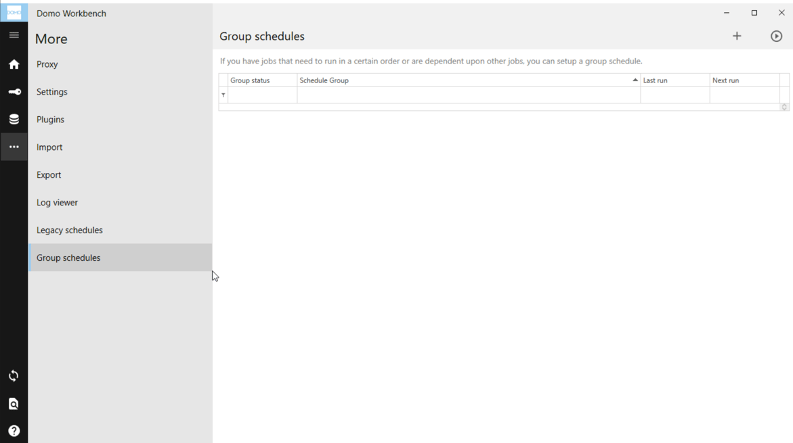
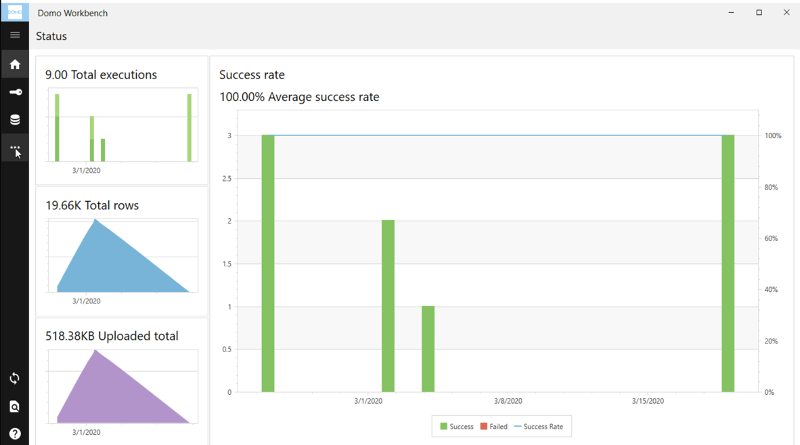 Choose **Group Schedules** and then select the plus sign to add a new Group.
 Select the jobs you would like to be included in your Group.
**Note:** Only jobs currently set to a manual schedule will appear here.
Select the jobs you would like to be included in your Group.
**Note:** Only jobs currently set to a manual schedule will appear here.
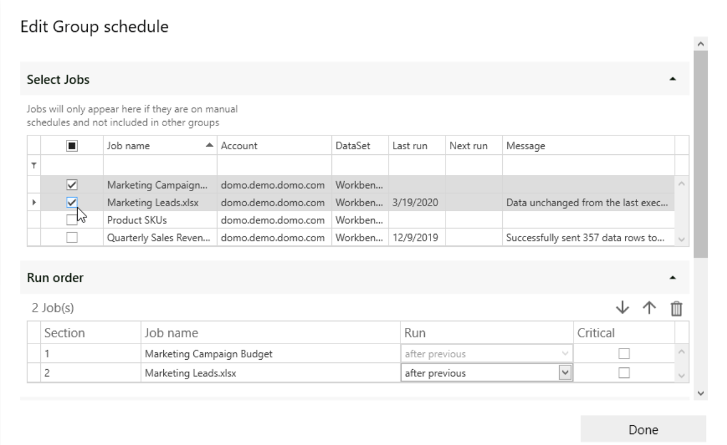 Once you have selected your jobs, you can order or delete them in the Run Order menu using the up and down arrows and the delete icon.
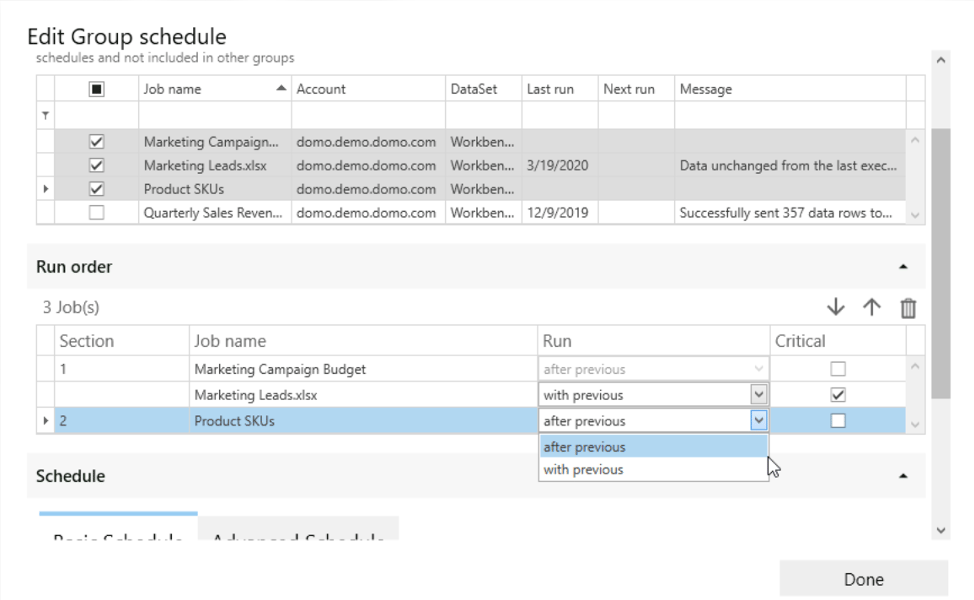 From this menu you can also choose to run jobs **with previous** or **after previous**, and choose whether a job should be marked as **Critical**.
* With previous: Any jobs marked
**with previous** will run at the same time as the job ordered before it as a synchronous run.
* After previous: Any jobs marked
**after previous** will wait until the job ordered before it has completed running before it will start as an asynchronous run.
* If you mark a job as
**Critical** all subsequent jobs set to run after the critical job will fail if the job marked **Critical** fails.
After setting up the run order, you can choose a schedule. The scheduling options are the same as when setting up an individual job.
From this menu you can also choose to run jobs **with previous** or **after previous**, and choose whether a job should be marked as **Critical**.
* With previous: Any jobs marked
**with previous** will run at the same time as the job ordered before it as a synchronous run.
* After previous: Any jobs marked
**after previous** will wait until the job ordered before it has completed running before it will start as an asynchronous run.
* If you mark a job as
**Critical** all subsequent jobs set to run after the critical job will fail if the job marked **Critical** fails.
After setting up the run order, you can choose a schedule. The scheduling options are the same as when setting up an individual job.
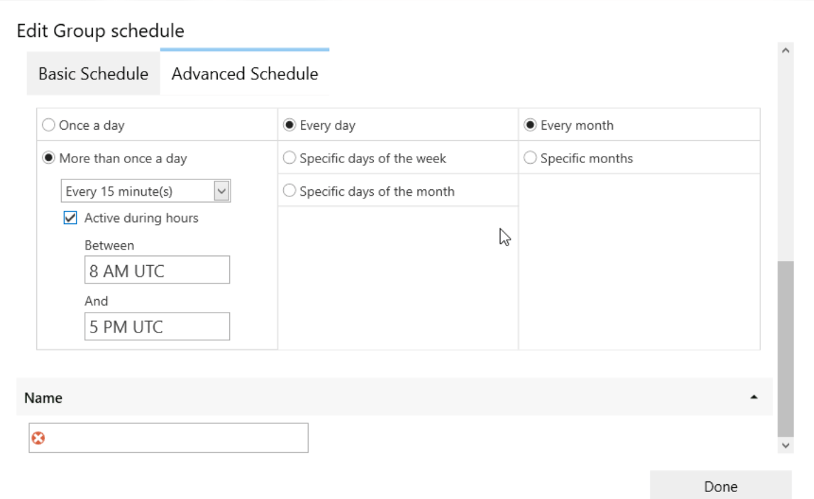 **Note:** If you need your DataSet to update faster than every 15 minutes, please reach out to your account team for evaluation.
Once the schedule is set, you can name the Group and then select **Done**.
**Note:** If you need your DataSet to update faster than every 15 minutes, please reach out to your account team for evaluation.
Once the schedule is set, you can name the Group and then select **Done**.
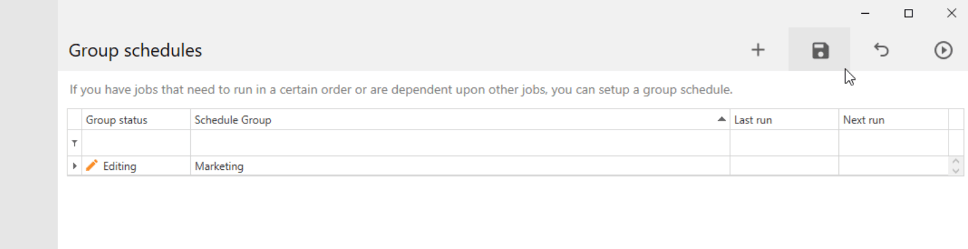
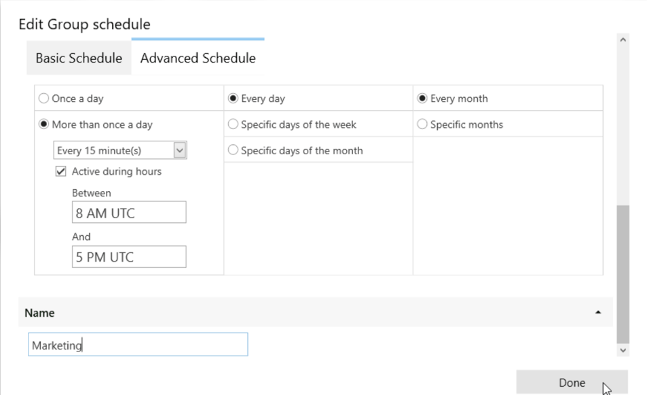 To save your Group, select the save icon in the top right corner.