

Intro
You can use attributes to drive dynamic groups and dynamic personalized data permissions (PDP). This can significantly reduce the overhead of managing group and data access. Depending on your needs, attributes can be managed by your identity provider (IdP), your Domo admins, or your users. These are examples of two of the most common problems that attributes can solve:Department-Based Access
The Sales and Marketing departments should have access to customer performance dashboards. However, team members in these departments change frequently, and managing group membership manually is a challenge. Solution Use dynamic groups to automatically populate group membership based on the department attribute in a user profile.Org Structure-Based Access
BI department team members should have access to instance monitoring dashboards. The department attribute is not properly maintained in our IdP, but only BI team members contribute to the BI team cost center. This assignment is tracked in the user’s profile as a list of “Contributing Cost Centers”. Solution Use dynamic groups to populate group membership based on whether this attribute contains the BI team cost center.Required Grant
To manage attributes, you must have the Manage All Company Settings grant enabled for your role. Admins have this grant enabled by default.Access Attributes Settings
Access the Attributes settings from the navigation header by selecting More > Admin. In the Governance menu, select Attributes. The Attribute management page displays.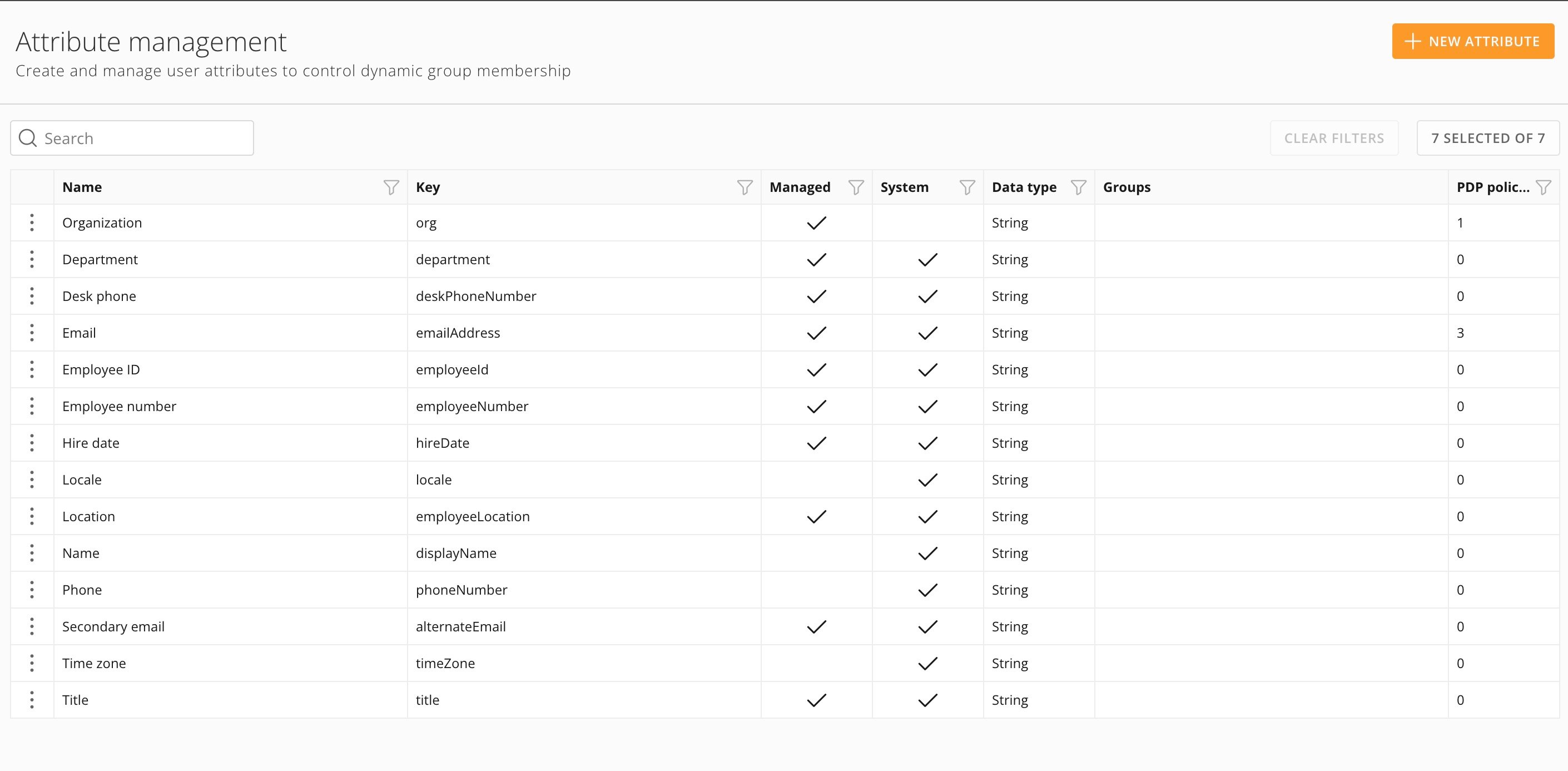
Attribute Management
The Attribute management page contains a list of all the attributes in your instance. The list of attributes contains the following columns:| Column | Description |
|---|---|
| Name | The name of the attribute. |
| Key | The key is used to look up and map values. |
| Managed | This column indicates whether the attribute can only be managed by trusted sources. Managed attributes are not editable by individual users. These attributes can drive dynamic group membership and dynamic PDP policies. |
| Data type | This column indicates how incoming metadata for the attribute is typed and validated. For system attributes, Domo defines the data type. For user-defined attributes, data types are inferred from the values received/entered. Data types follow the Java definition for that type. Attributes can be multi-valued (list/array). |
| PDP policies | This column indicates the number of PDP policies that use this attribute. Select the number to view a list of the policies. |
| Groups | This column indicates the dynamic groups that use this attribute. |
| System | This column indicates whether this attribute is a default system attribute that cannot be removed. Certain properties of system attributes are editable. |
| Actions | If applicable, you can make changes to the attribute by selecting  Editin this column or remove the attribute. System attributes cannot be removed. Editin this column or remove the attribute. System attributes cannot be removed. |
Managed Attributes
There are two kinds of managed attributes: system and custom. These are described below. You can use both types of attributes to populate dynamic groups based on values in a user’s profile. or create dynamic PDP policies. Learn about Personalized Data Permissions (PDP) and see Create and Manage Groups for more information.System Attributes
System attributes are default and come pre-loaded in the platform. You cannot remove them, but some of their properties are editable, if there are no dynamic groups or PDP policies associated with them.Custom Attributes
Custom attributes are created by users and can be configured to be managed, sourced from your IdP or to other specifications. You can edit and remove custom attributes, as long as there are no dynamic groups or PDP policies associated with them.Create a Custom Attribute
Follow these steps to create a custom attribute:-
In the Domo navigation header, select More > Admin.
The Admin Settings display. -
In the Governancemenu, select Attributes.
The Attributes section displays. -
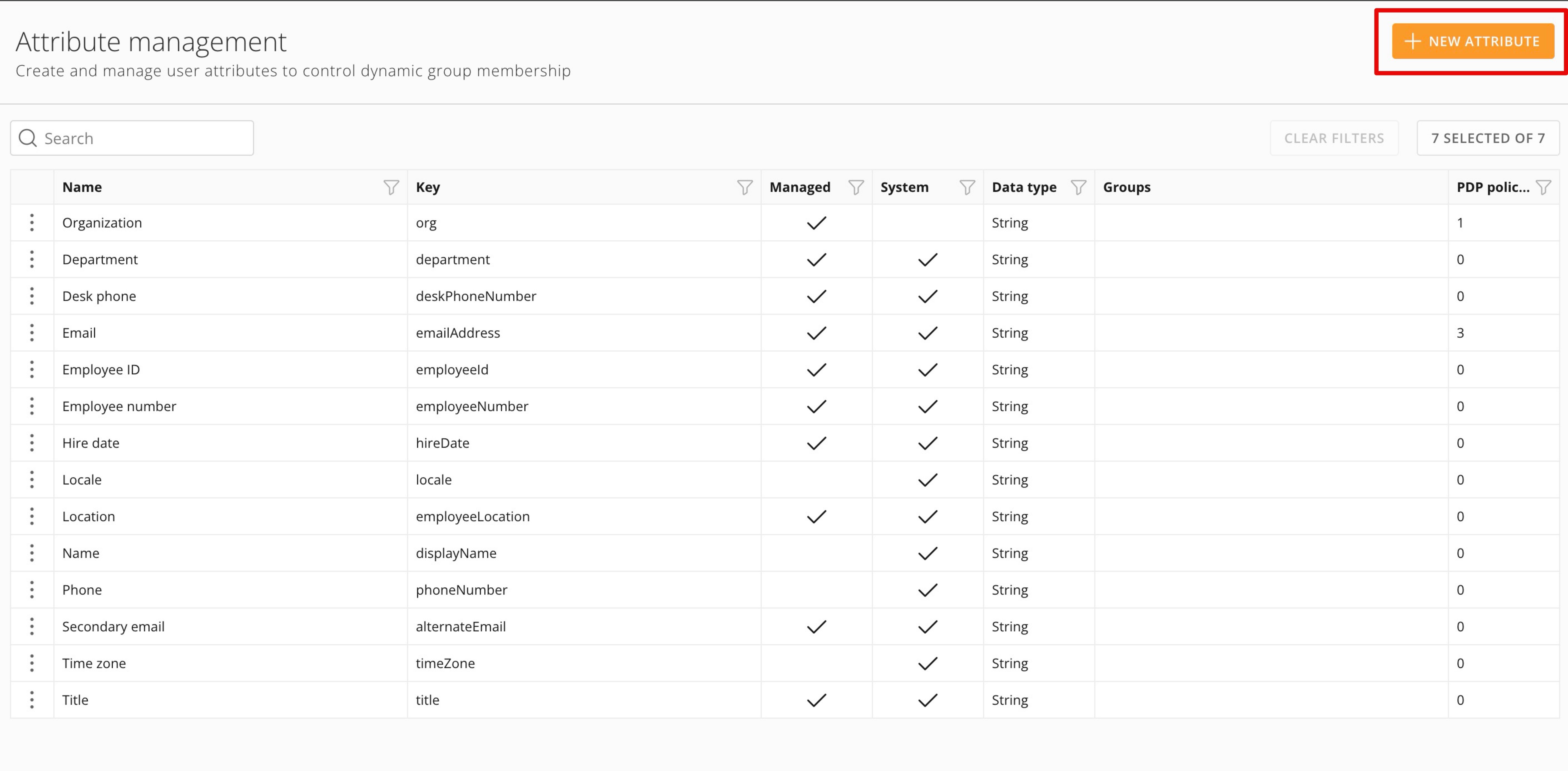
Select + New Attribute.
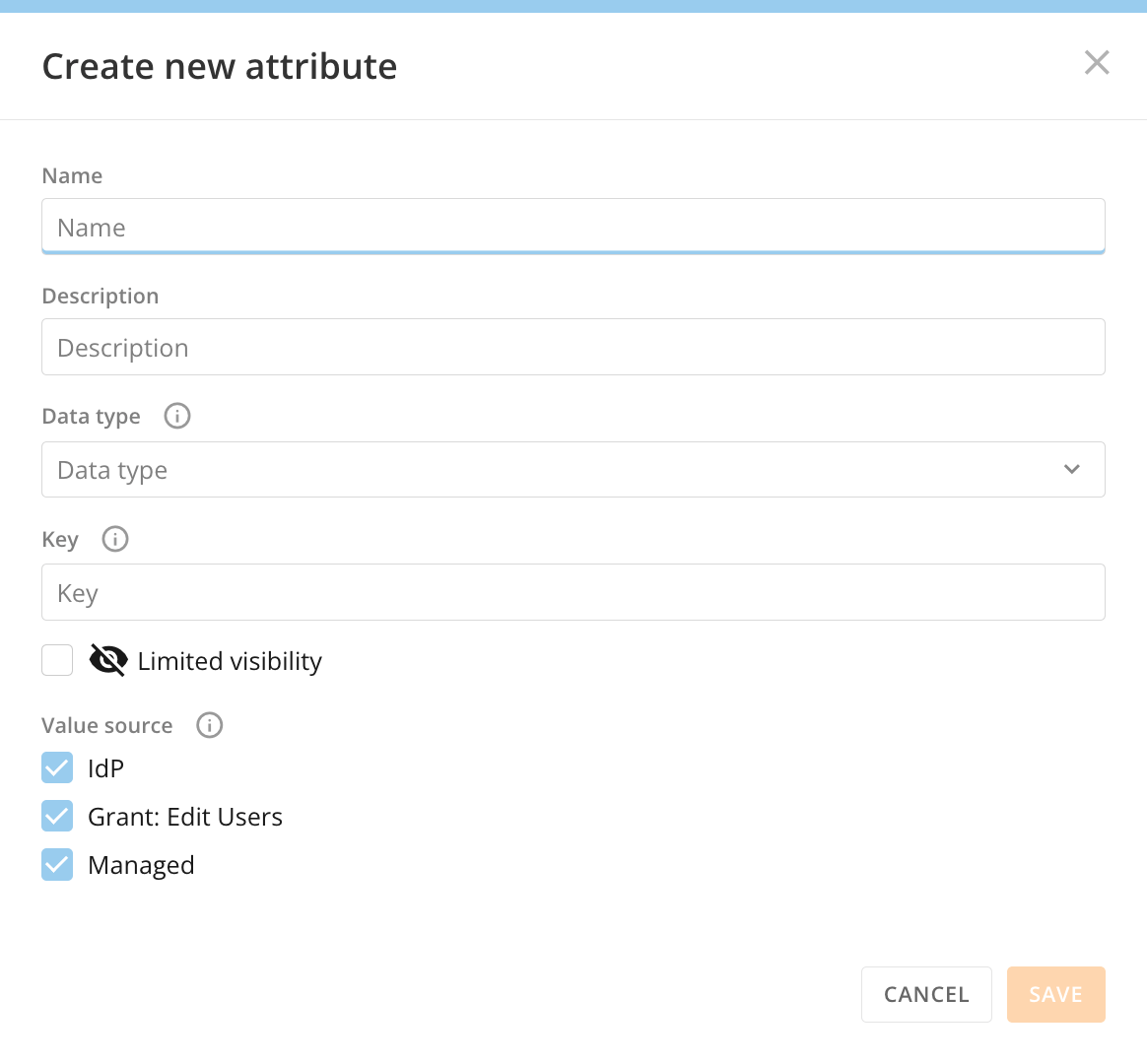
The Create new attributemodal displays.
-
In the modal, provide the following information.
- **Name —**A descriptive name shown within Domo. This does not need to be unique, although we recommend unique names to avoid confusion.
- **(Optional) Description —**Details to help users understand what this attribute represents.
-
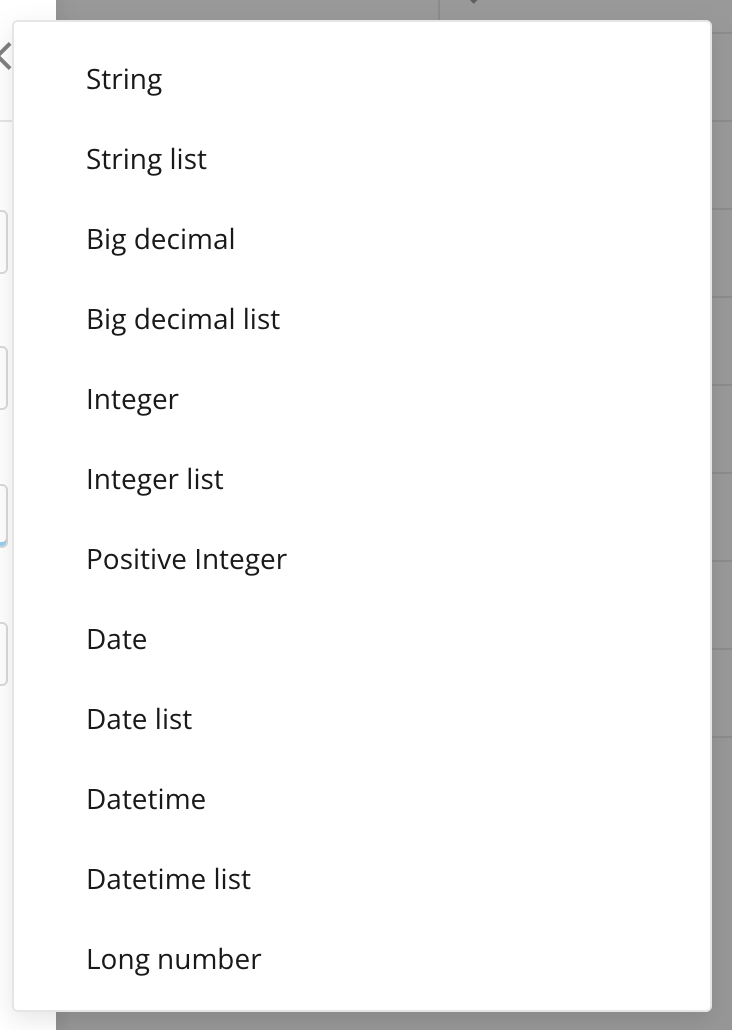
**Data type —**There are several different data types available, as shown in this image. List-type attributes support multiple entries.
- Key — A unique, case-sensitive name for the attribute. If the attribute is sourced from your IdP, this must exactly match the name used in your IdP configuration. After it is set, this value cannot be changed.
-
Value Source — Indicates allowable sources of values for this attribute:
- IdP — If enabled, values are sourced from your IdP each time a user signs in to Domo. Note that this also requires your SSO configuration to allow attribute population via the Enable custom attribute ingestion option.
See our SSO implementation documents for more information. - Grant: Edit Users — If enabled, users with the Edit Users grant can edit values for this attribute. If the IdP source is also enabled and your IdP contains values for this attribute, those values overwrite any user-entered values the next time the user signs in.
- Managed — If enabled, this attribute is managed and users cannot edit their own values. This allows the use of the attribute in security policies.
- IdP — If enabled, values are sourced from your IdP each time a user signs in to Domo. Note that this also requires your SSO configuration to allow attribute population via the Enable custom attribute ingestion option.
- Select Save.
Edit Attribute Values
You can edit attribute values in the People section of the Governance settings. You can only edit unmanaged attributes with the Grant: Edit Users value source from this page.Note: If the attribute is also sourced from your IdP, any manually changed
values reset to the IdP-sourced value the next time the user signs in.
FAQ
Can I use custom attributes in dynamic groups and dynamic PDP?
Can I use custom attributes in dynamic groups and dynamic PDP?
Custom (non-system) attributes can be used in both dynamic groups and dynamic
PDP policies as long as they’re managed. See the details above for how to
configure an attribute as managed. Learn about
Personalized Data Permissions (PDP).
Can I export my attribute configuration?
Can I export my attribute configuration?
Not at this time.
I'm renaming an attribute key in my IdP. How do I change the key in Domo?
I'm renaming an attribute key in my IdP. How do I change the key in Domo?
Attribute keys cannot be changed. Instead, create a new attribute.
Why can't I edit an attribute?
Why can't I edit an attribute?
Attributes are only editable when they are not being used to drive group
membership and PDP rules. See Attribute Management
above for more information.
How do I edit attribute values in bulk?
How do I edit attribute values in bulk?
Bulk user import does not currently support editing custom attribute values,
but we are exploring options to allow that.