

Intro
The Add Formula tile is a row-by-row expression evaluator that brings advanced transformation processes to Magic ETL. It supports functions such as case statements, time-value-money functions, and statistical utility functions. Now you can use the AI SQL Assistant to write and test formulas quickly, improving accuracy and giving you more time for other tasks. Learn more about the Add Formula tile.Use the AI SQL Assistant
Follow these steps to use the AI SQL Assistant to create a formula in the Add Formula tile:- Drag the Add Formula tile from the Utility section of the left panel to the Magic ETL canvas and connect it to your DataFlow.
- In the tile editor below the canvas, choose a name for the output column of the tile.
-
Select Open the formula editor.
-
At the bottom of the Calculation field in the formula editor, use the prompt field to enter your prompt in natural language and describe the calculation you want to create.
In the example below, the prompt is to “categorizeCustomerStateby US region.” After entering the prompt, the SQL query displays in the main Calculation field. - Save and close to return to the canvas.
Configure the Add Formula Tile
The following screenshot shows how the Add Formula Action looks:| Name | Description |
|---|---|
| Output Column Name | Add a column name to create a new calculated column and write a formula. To overwrite an existing column, use the  dropdown to view and select an existing column or type the name of that column exactly to overwrite existing column. When the table icon dropdown to view and select an existing column or type the name of that column exactly to overwrite existing column. When the table icon  appears in the textbox, an existing column will be overwritten by the entered formulas result. appears in the textbox, an existing column will be overwritten by the entered formulas result. |
| Formula | Formulas are calculated columns that use SQL-style syntax like Beast Modes. This action evaluates each row individually with the functions provided. Due to the nature of this tile’s output data, aggregate functions are not supported. For aggregations use the Group By action. |
| Expand Editor Button |  Opens the formula editor expanded view (see screenshot below.) Opens the formula editor expanded view (see screenshot below.) |
| Validate Formula Button |  Quickly validates the formula’s syntax and checks for errors without running a preview of the entire DataFlow. Quickly validates the formula’s syntax and checks for errors without running a preview of the entire DataFlow. |
| Preview | Using the Ctrl + Enter hotkey while the Add Formula Configuration tab is open will run a one row test of your formula and return the result. If a Run Preview of the entire DataFlow has yet to run, this hotkey will kick off a DataFlow preview. After the DataFlow preview’s successful completion, Ctrl + Enter will run a one row test and return the result including any updates made to the formula’s syntax. |
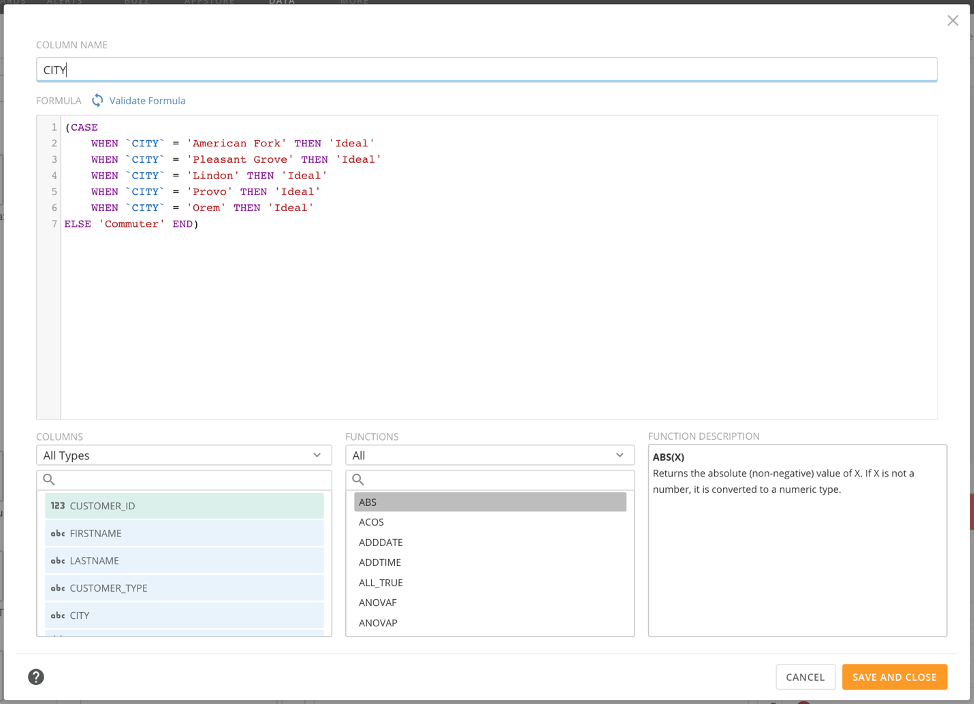
Parts of the Formula Editor (Expanded View)
Calculation Usage Notes
Most calculations use one of the following general formats:- Column names are not case sensitive.
- Supported functions are not case sensitive.
-
Use backticks (aka backquotes) (
) or double quotes (") for column names:Customersor "Customers" Wrap column names of two or more words with backticks () or double quotes (”). If you use any column name that matches the name of a function (such as DATE), then use backticks or double quotes (”) to wrap the column name. - Use single quotes (’) for strings: ‘mystring’
- You can escape a quote using two single quotes: ‘O”Neal’
-
You can insert a space in a calculation using single quotes: ’ ‘
This is useful with functions like CONCAT when you need to combine strings. - You can use most standard arithmetic operators in your custom calculations, such as + (addition), - (subtraction), * (multiplication), / (division), and so on.
- You can refer to a specific new column by name that was created from a formula in a separate calculated formula, as long as the new column being referenced is higher than the formula referencing it.
- Calculations can be completed automatically as you enter them.
- As you enter functions, a list of functions appears, which you can select from.
- If you enter a backtick (’), a list of column names appears, which you can select from.
- While you can combine some functions in a calculation, you cannot stack numerical functions. For example, SUM(MIN()) is invalid.
-
Do not mix data types of values you put in a transformed column.
For example, in a CASE function, do not store “Yes” (string) and “0” (number) in the same column.