Intro
Microsoft OneDrive for Business is an online file-sharing and personal cloud content management service for businesses. Use this connector to pull data files from your OneDrive for Business account into Domo. You can retrieve the data files in any of the following file types: CSV, XLS, XLSX, XML, ZIP, and GZIP. You can connect to your Microsoft OneDrive Business Enterprise OAuth Configuration account in the Data Center. This topic discusses the fields and menus specific to the Microsoft OneDrive Business Enterprise OAuth Configuration connector user interface. To add Data Sets, set update schedules, and edit Data Set information, see Adding a DataSet Using a Connector.Prerequisites
To connect to your Microsoft OneDrive Business Enterprise OAuth Configuration account and create a DataSet, you need to select the OAuth Configuration.Connecting to Your Microsoft OneDrive Business Enterprise OAuth Configuration Account
This section enumerates the options in the Credentials and Details panes on the Microsoft OneDrive Business Enterprise OAuth Configuration Connector page. The components of the other panes on this page, Scheduling, and Name & Describe Your DataSet, are universal across most connector types and are discussed in great detail in Adding a DataSet Using a Connector.Credentials Pane
This pane contains fields for entering credentials to connect to your Microsoft OneDrive Business Enterprise OAuth Configuration account. The following table describes what is needed for each field:
Once you have entered valid Microsoft OneDrive Business Enterprise OAuth Configuration credentials, you can use the same account at any time to create a new Microsoft OneDrive Business Enterprise OAuth Configuration DataSet. You can manage connector accounts in the Accounts tab in the Data Center. For more information about this tab, see Manage Connector/Adapter Accounts.
Details Pane
Advanced
Other Panes
For information about the remaining sections of the connector interface, including how to configure scheduling, retry, and update options, see Adding a DataSet Using a Connector.FAQ
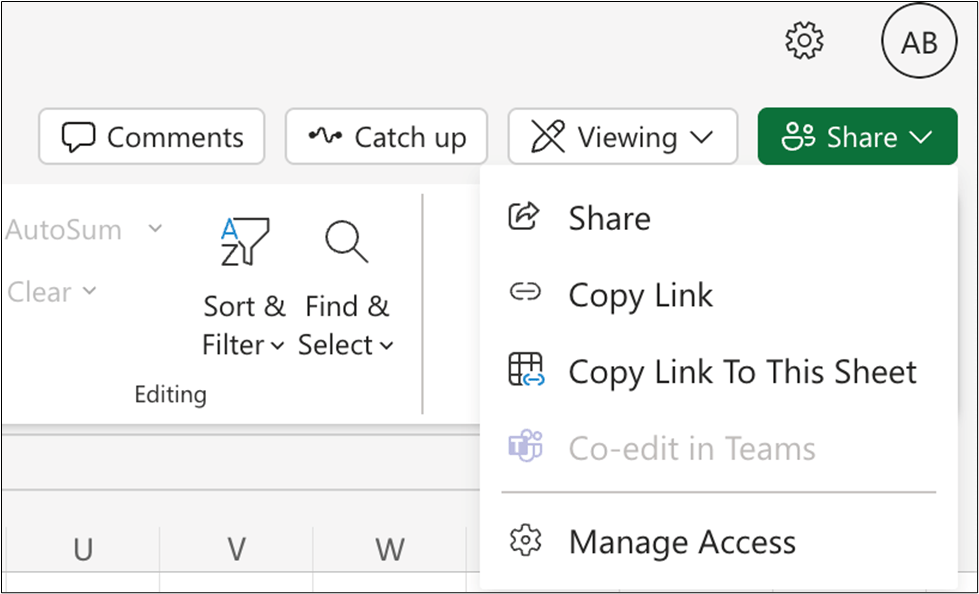
The Sharing URL can be obtained through two distinct methods:
-
- Browser Address Bar: Use the file’s URL as displayed in the browser address bar during file viewing.
-
OneDrive Generation: Utilize the URL generated by OneDrive upon selecting Copy link from the Share menu.