

Intro
Microsoft OneDrive for Business is an online file sharing and personal cloud content management service for businesses. For more information about the OneDrive API, see https://msdn.microsoft.com/en-us/lib…/dn659752.aspx. You connect to your OneDrive for Business account in the Data Center. This topic discusses the fields and menus that are specific to the OneDrive for Business connector user interface. General information for adding DataSets, setting update schedules, and editing DataSet information is discussed in Adding a DataSet Using a Connector.Prerequisites
To connect to your OneDrive for Business account and create a DataSet, you must have the following:- A OneDrive for Business client secret
- A Microsoft username and password
- If you are using a newly registered app, set your redirect_uri to https://oauth.domo.com/api/data/v1/oauth/providers/onedrive-business/exchange.
- If you are using an existing app, set your redirect_uri to https://oauth.domo.com/api/data/v1/oauth/providers/microsoft-onedrive-business/exchange.
- An installed Microsoft Azure app.
-
The CLIENT ID and CLIENT SECRET. To generate an app and locate these credentials, see Microsoft’s documentation. You may need the following information to register for the app:
- Azure Portal: https://portal.azure.com/
- Sharepoint App to Register: SharePoint Online Rest API
- Domo Re-direct URL: https://oauth.domo.com/api/data/v1/oauth/providers/microsoft-onedrive-business/exchange
-
The Microsoft OneDrive for Business Connector needs the following API permissions.
- User.Read
- Files.Read.All
- offline_access
Setting Up the Azure Portal Video
To set up the Azure portal, watch the YouTube video, How to Set Up the OneDrive for Business Connector.To Obtain the OneDrive CLIENT ID:
- Go to https://portal.azure.com.
- Select Microsoft Entra ID (https://learn.microsoft.com/en-us/entra/fundamentals/new-name)> App registrations.
- Find and click on your web app.
- The “application” ID is your CLIENT ID.
To obtain the OneDrive CLIENT SECRET:
- Go to https://portal.azure.com.
- Select Microsoft Entra ID (https://learn.microsoft.com/en-us/entra/fundamentals/new-name)> App registrations.
- Find and click on your web app.
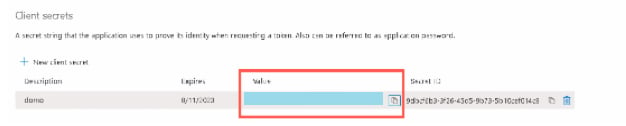
- Open Certificates and secrets.
- Click +New Value.
- Provide the value description and the expiry period for your secret. Click Add.
- Your new value will appear. Copy the Value field and paste it in your Domo connector Value field.
Creating an Azure App for Enterprise OAuth
To create a Microsoft Azure app, do the following:- Log into https://portal.azure.com.
-
Click on App registrations.
 3. Click New registration.
-
Enter the application name and select the supported account type. Enter the Redirect URI for Web as https://oauth.domo.com/api/data/v1/oauth/providers/microsoft-onedrive-business/exchange.
- Click Register.
-
Now, click API Permissions.
 7. Click +Add Permissions button.
- Select the permissions as required.
-
After adding the permissions, all configured permissions will be listed as below.
Connecting to Your OneDrive for Business Account
This section enumerates the Permission settings within Microsoft needed for Domo access as well as options in the Credentials and Details panes in the OneDrive for Business Connector page. The components of the other panes in this page, Scheduling and Name & Describe Your DataSet, are universal across most connector types and are discussed in greater length in Adding a DataSet Using a Data Connector.Credentials Pane
This pane contains fields for entering credentials to connect to your OneDrive for Business account. The following table describes what is needed for each field:
Once you have entered these credentials, you are taken to the Microsoft login screen, where you can enter the username and password for your Microsoft account. After you successfully connect, you can use the same account any time you go to create a new OneDrive for Business DataSet. You can manage connector accounts in the Accounts tab in the Data Center. For more information about this tab, see Managing User Accounts for Connectors.
Details Pane
This pane contains a primary Report menu, along with various other menus which may or may not appear depending on the report type you select.Report
Select the OneDrive for Business report you want to run. The following reports are available:Deprecated reports: Use the Download Shared File (Using SharingURL) report instead of any of the deprecated reports listed above.
Other Menus
The following menus may also appear depending on the report you select:FAQ
What kind of credentials do I need to power up this connector?
What kind of credentials do I need to power up this connector?
You need the client ID and client secret of your OneDrive App.
How often can the data be updated?
How often can the data be updated?
Datasets should be set to update no more than once per hour.
Are there any API limits that I need to be aware of?
Are there any API limits that I need to be aware of?
Microsoft limits API calls on a per-user/per-app basis. To prevent rate limiting, reduce the number of datasets scheduled to run at the same time.